
Organizations
The tenant boundary in Bifrost — every config, connection, table row, and automation is scoped to an organization or shared globally across all of them.
An organization is the tenant boundary in Bifrost. As an MSP, you run one platform and represent each customer as an organization. Configs, OAuth connections, table rows, forms, and automations either belong to a single organization or are shared globally across all of them.
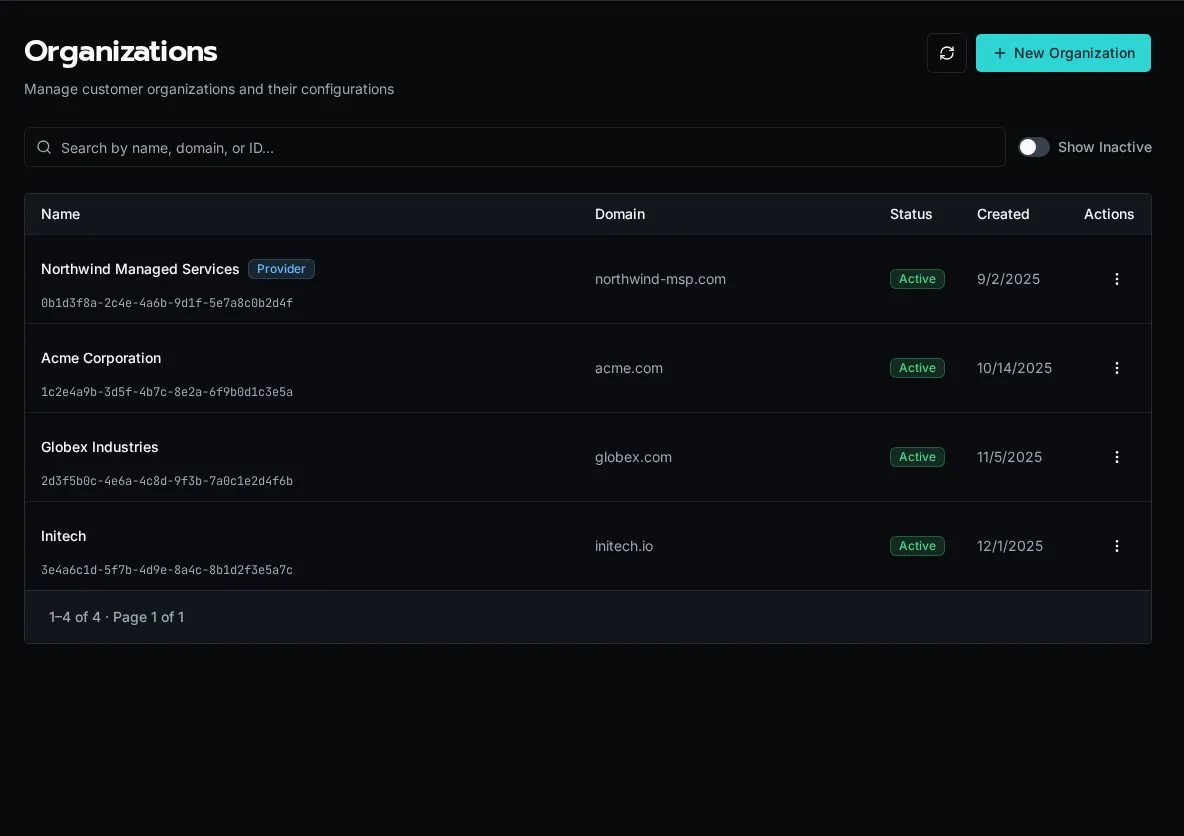
The provider organization
Section titled “The provider organization”One organization is marked as the provider — your own MSP. It is created automatically, cannot be disabled or deleted, and is highlighted with a star. Members of the provider organization can resolve and manage resources across every customer organization, which is how platform-wide automations and shared integrations work.
Scope cascade
Section titled “Scope cascade”Every scoped resource resolves against the active organization first, then falls back to the global scope:
- Organization (
organization_id = UUID) — visible only inside that one organization. - Global (
organization_id = None) — visible to every organization as a shared default.
A customer-specific OAuth connection or config overrides the global one of the same name when a workflow runs in that organization’s context. See Scopes: Global vs Organization for how this resolution works in workflow code.
Email-domain auto-provisioning
Section titled “Email-domain auto-provisioning”Set an organization’s email domain (for example acme.com) and any new user who signs in with a matching address is automatically placed in that organization. This removes manual user assignment for customers who use SSO.
Active vs inactive
Section titled “Active vs inactive”Disabling an organization keeps its data intact but takes it out of active rotation. Use the row menu to disable an offboarded customer, turn on Show inactive to find it later, and choose Enable to restore it. The provider organization cannot be disabled.
Required AI instructions
Section titled “Required AI instructions”Each organization can add instructions for work performed through the default Bifrost MCP endpoint. Open the organization’s row menu, choose Manage, then select Instructions. Organization instructions are applied after the platform-wide instructions from Settings → AI → Default MCP Instructions.
Use this layer for durable customer context such as naming conventions, escalation rules, or approved operating boundaries. Do not put secrets in instructions.
Managing organizations
Section titled “Managing organizations”Create, edit, enable, and disable organizations from the Organizations page, or script the same operations with the CLI:
bifrost orgs create --name "Acme Corporation" --domain acme.combifrost orgs listThe CLI’s delete command performs the same soft-delete as Disable in the UI; it does not erase the organization’s data.