
Manage AI Memory and Instructions
Enable private user memory and set global or organization instructions for Bifrost-connected assistants.
Enable memory for the platform
Section titled “Enable memory for the platform”-
Open Settings → AI → Embeddings and configure an embedding connection and model.
-
Turn on Enable Memory in the Memory card.
-
Tell users they can opt in from User Settings → Preferences.
The platform switch is a ceiling: turning it off disables memory for everyone. Turning it on lets each user decide whether their own account participates.
Manage your memories
Section titled “Manage your memories”Open User Settings → Preferences, turn on Enable Memory, and explicitly ask a Bifrost-connected assistant to remember durable context. The assistant tells you whenever it saves or removes a memory.
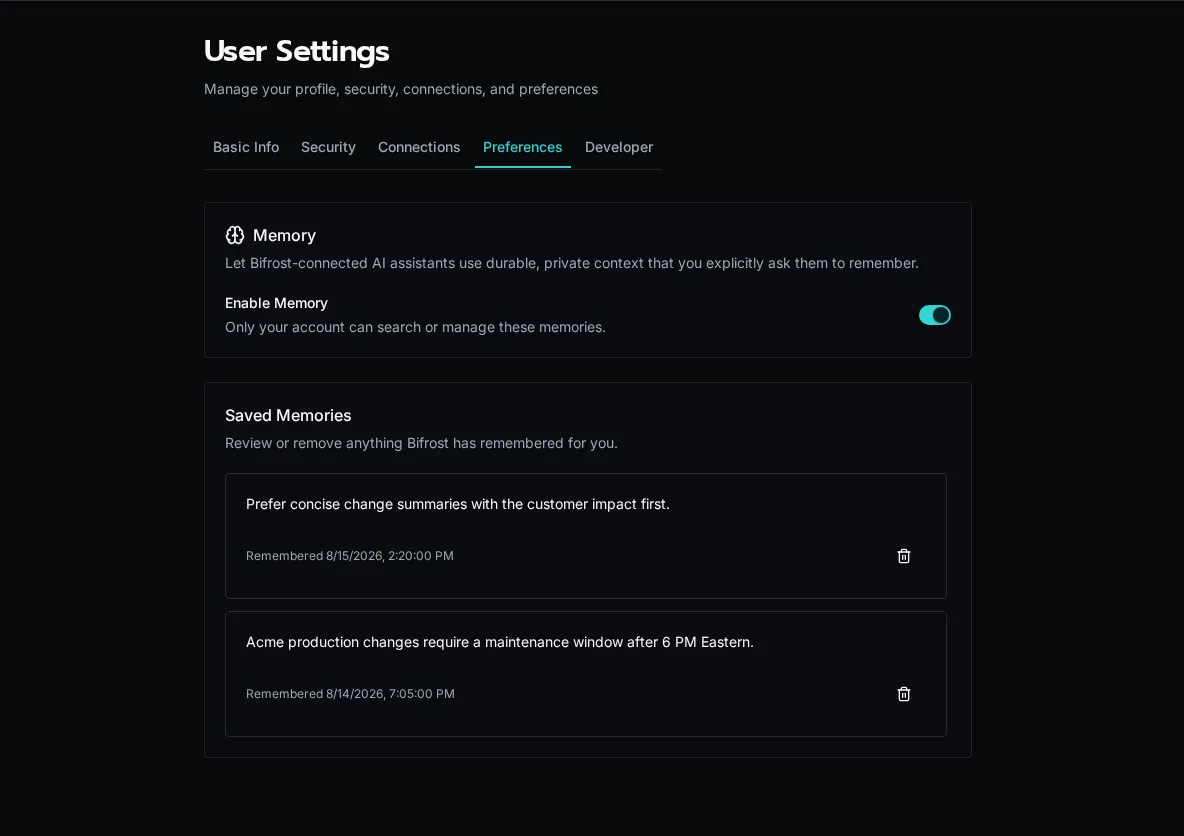
Saved memories are private to your account. Review them in Saved Memories and use the trash action to remove anything that should no longer be used. Turning memory off stops retrieval but does not silently delete saved entries.
Set required instructions
Section titled “Set required instructions”Platform admins can add two editable instruction layers:
- Add Global Instructions under Settings → AI → Default MCP Instructions for rules that apply to every task through the default Bifrost MCP endpoint.
- Open Organizations, choose Manage for a customer, and use the Instructions tab for customer-specific context.
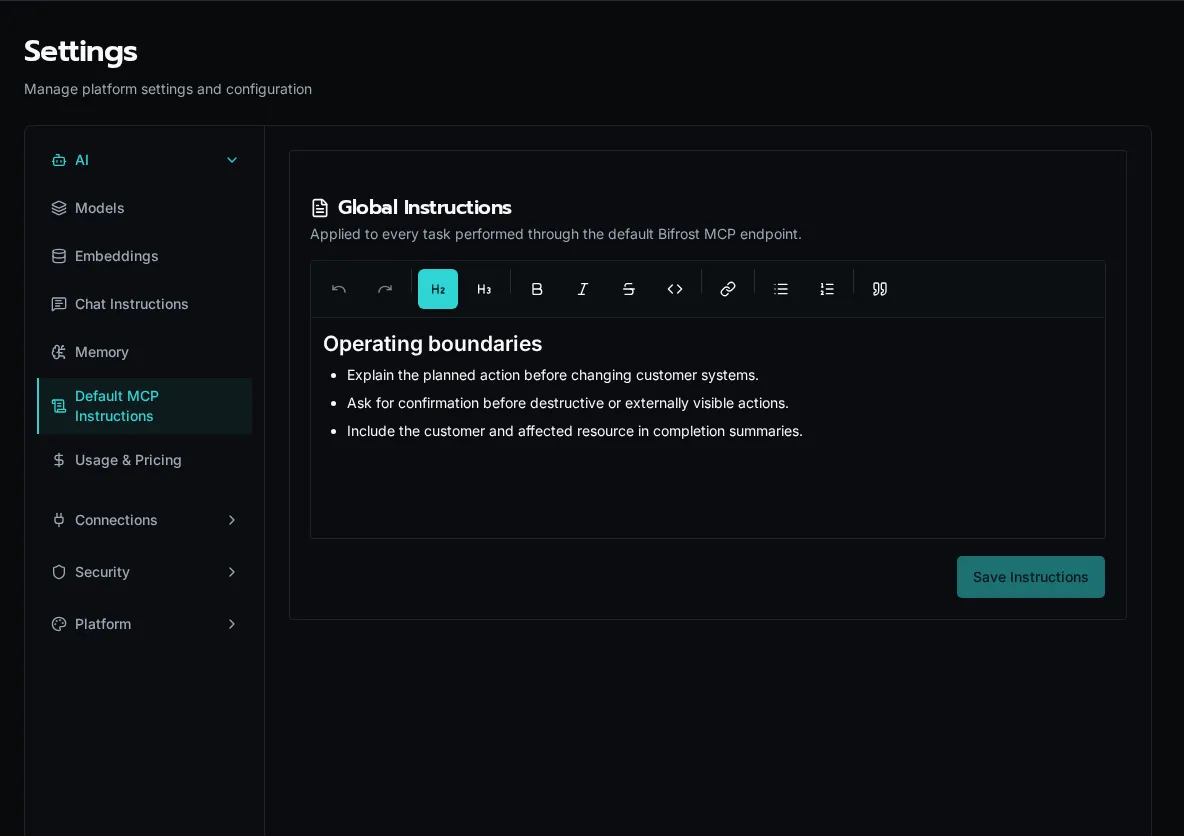
When memory is active, Bifrost resolves instructions in this order:
- Built-in memory safety requirements
- Global instructions
- Organization instructions
Later layers add specificity; they do not remove the built-in safety requirements. Keep instructions durable and operational—for example, escalation boundaries, approved terminology, or customer-specific constraints.