
Set Up a Shared Microsoft Teams Bot
Configure one provider-owned Teams bot for customer tenants and route each authenticated activity to the right Bifrost organization.
Use this guide when one provider-operated Teams bot serves several customer Microsoft 365 tenants. It installs the reusable Bifrost Teams transport, keeps the bot credentials in provider scope, and maps every customer tenant to one Bifrost organization.
The three identities have different jobs:
| Identity | Purpose |
|---|---|
| Bot home tenant | Obtains Bot Connector tokens for the shared bot. |
| Customer tenant | Supplies Graph access and the tenant-local Teams catalog app. |
| Bifrost organization | Receives that customer’s authenticated Teams activities. |
1. Prepare the provider bot
Section titled “1. Prepare the provider bot”Use an existing Teams-managed multitenant bot, or create one through the Teams Developer Portal’s Tools > Bot management flow. Teams-managed bots do not require an Azure subscription; Microsoft documents that portal flow in its Developer Portal guide.
Record the Entra application (client) ID, client secret, and home tenant ID.
The bot must be multitenant (isSingleTenant: false / AzureADMultipleOrgs),
and Bot Connector authentication must use the home-tenant authority. Do not use
a customer tenant to obtain a token for the shared bot.
2. Install the reusable Bifrost transport
Section titled “2. Install the reusable Bifrost transport”Clone the reusable Teams example, then run the following from its
features/microsoft_teams directory. Authenticate the CLI to the Bifrost
instance that will own the shared bot.
bifrost login --url https://<your-bifrost-url>bifrost requirements install Markdown
bifrost files write modules/microsoft_teams_bot.py --from-file ../../modules/microsoft_teams_bot.py --create-onlybifrost files write features/microsoft_teams/workflows/messages.py --from-file workflows/messages.py --create-onlybifrost files write features/microsoft_teams/workflows/route_authenticated_event.py --from-file workflows/route_authenticated_event.py --create-only
bifrost workflows register --global --path features/microsoft_teams/workflows/messages.py --function-name send_teams_messagebifrost workflows register --global --path features/microsoft_teams/workflows/messages.py --function-name update_teams_messagebifrost workflows register --global --path features/microsoft_teams/workflows/messages.py --function-name delete_teams_messagebifrost workflows register --global --path features/microsoft_teams/workflows/messages.py --function-name send_teams_typingbifrost workflows register --global --path features/microsoft_teams/workflows/route_authenticated_event.py --function-name route_authenticated_teams_event
Register these workflows globally. The --org argument on a send selects a
customer context; it does not retarget a workflow registered inside a customer
organization.
3. Configure Bifrost and the authenticated callback
Section titled “3. Configure Bifrost and the authenticated callback”Create one global Microsoft Teams Bot integration. Its defaults belong to the
provider and must be encrypted in Bifrost; never place bot credentials in a
customer mapping.
bifrost integrations create --name "Microsoft Teams Bot" --entity-id tenant_id --entity-id-name "Customer Entra tenant" --config-schema @integration.schema.yamlbifrost integrations get "Microsoft Teams Bot" --jsonbifrost api PUT /api/integrations/<integration-id>/config @home-defaults.template.jsonThe example’s defaults contain bot_tenant_id, client_id, client_secret,
and an optional bot_name. bot_tenant_id is always the provider bot’s home
tenant. The transport uses it for sends, replacements, deletes, and typing
indicators.
Create the shared Bot Framework event source and attach the router:
bifrost events create-source --global --name "Microsoft Teams Bot Framework" --source-type webhook --adapter microsoft_bot_framework --webhook-config '{"app_id":"<azure-bot-client-id>"}'bifrost events subscribe "Microsoft Teams Bot Framework" --workflow route_authenticated_teams_eventbifrost events get-source "Microsoft Teams Bot Framework"Use the callback URL returned by events get-source as the bot’s messaging
endpoint. The adapter validates the Bot Framework bearer token and accepts
Teams activities before the router runs. The router takes no caller-supplied
activity: it reads the normalized authenticated event, matches
activity.channelData.tenant.id to exactly one mapping, scopes execution to
that organization, and emits microsoft_teams.activity_received.
Unknown and duplicate tenant mappings deliberately emit no customer event.
Subscribe customer-scoped workflows to microsoft_teams.activity_received for
the business behavior you need. Keep sender authorization separate from routing:
an authenticated Teams sender still needs a Bifrost role or application policy
before they can trigger ticket or agent actions.
4. Build the customer Teams package
Section titled “4. Build the customer Teams package”Build a ZIP for the shared bot. The Teams package ID and the bot client ID are
different GUIDs: retain both. The package’s botId and
webApplicationInfo.id use the shared bot client ID; the catalog assigns a
third, tenant-local ID when the app is first uploaded.
python3 package/build_package.py \ --output /tmp/microsoft-teams-bot.zip \ --app-id <teams-package-guid> \ --bot-app-id <azure-bot-client-id> \ --name "<bot-display-name>" \ --developer-name "<provider-name>" \ --website-url https://<provider-domain>/support \ --privacy-url https://<provider-domain>/privacy \ --terms-url https://<provider-domain>/terms \ --valid-domain <provider-domain>The builder produces a Teams 1.25 manifest with the required 192px color and 32px outline icons. Its package does not request resource-specific consent (RSC). Add RSC only for a feature that needs it, such as reading channel messages without an @mention; its installation or upgrade must then include the matching consent set.
5. Publish the package in the customer catalog
Section titled “5. Publish the package in the customer catalog”A customer Teams administrator uploads the ZIP through Teams apps >
Manage apps. For a new package, choose Upload new app (sometimes under
Actions) and record the generated catalog app ID as that customer’s
teams_app_id mapping value.
For an existing catalog app, open its details and choose Upload file. Keep
the package ID and bot client ID stable, increase the manifest version, and
upload the replacement ZIP. This is an update, not a new app upload; verify the
published version and that the catalog ID did not change.
The supplied builder emits version 1.0.0. Before building an update, change
the version in its generated manifest definition, then rebuild the ZIP with
the same package ID and bot client ID.
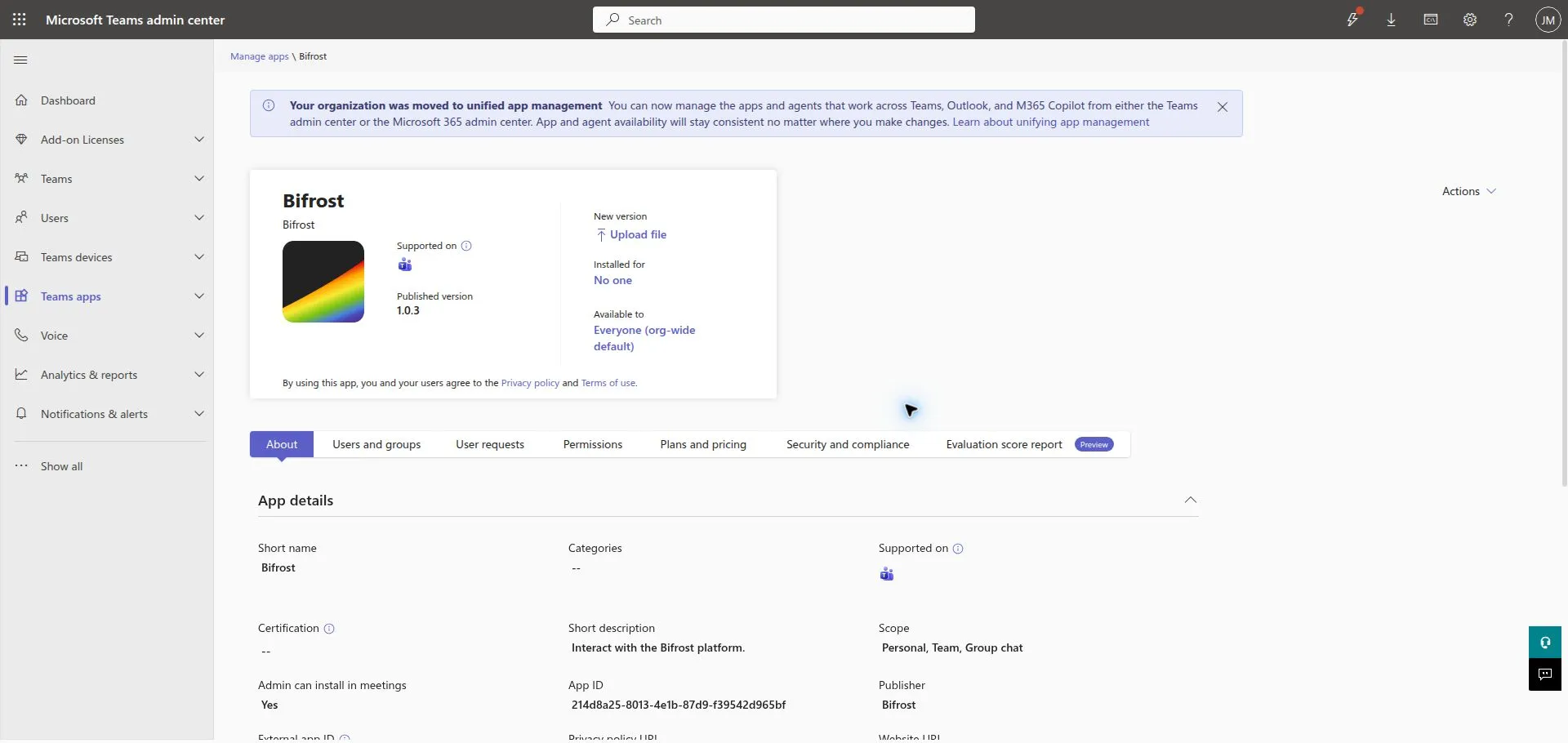
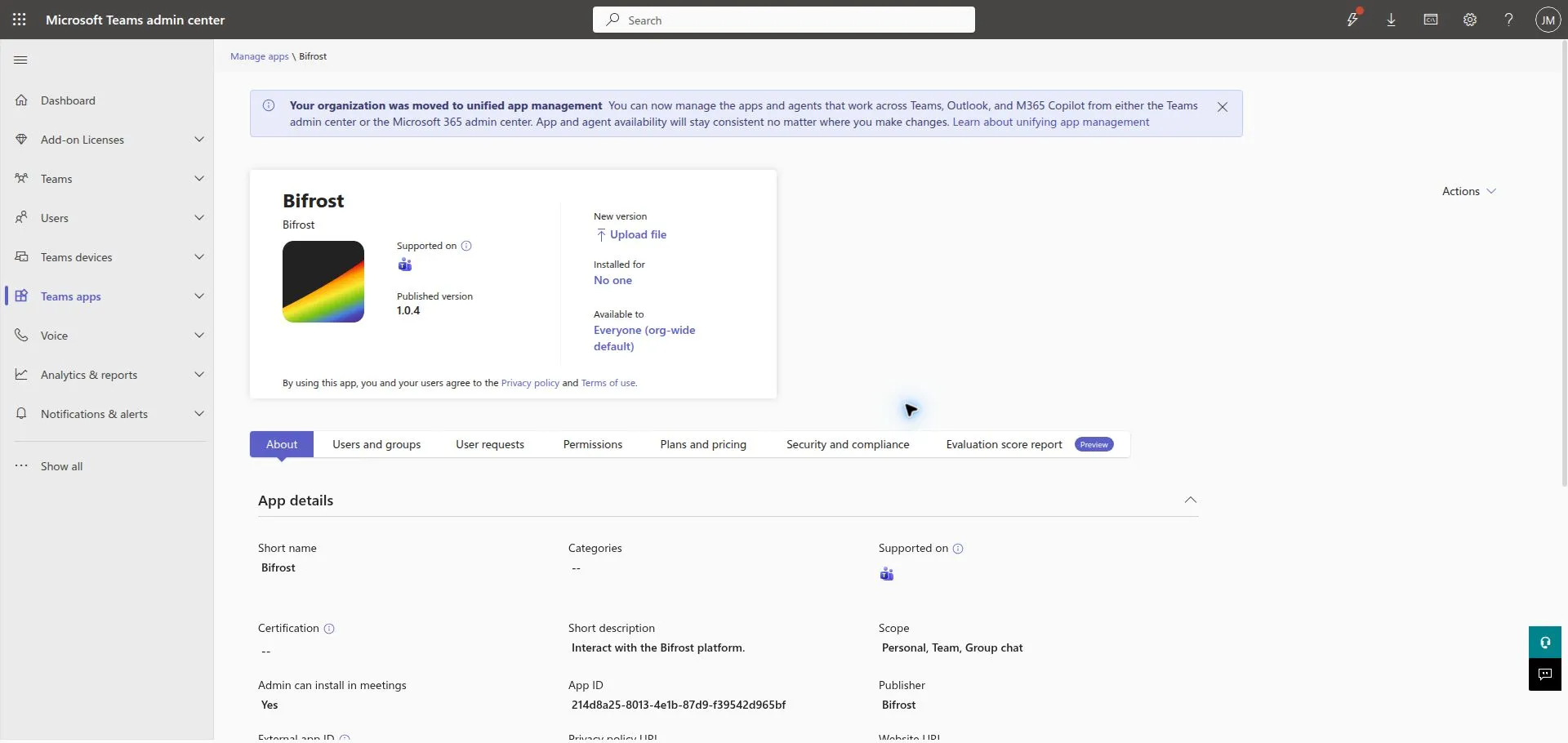
These screenshots illustrate an existing app being updated from 1.0.3 to 1.0.4 in a development catalog. They do not show a new registration or a fresh automatic installation.
Microsoft documents the customer-admin catalog upload and update path, including Upload file for updates. Microsoft Graph catalog publication and package update use a delegated customer-administrator session; the publish API does too. They do not accept an app-only token, and a CSP/GDAP token is not a substitute for that direct delegated catalog session. Use the customer admin upload path unless you have separately validated a delegated automation path for that tenant.
6. Finish customer onboarding
Section titled “6. Finish customer onboarding”Grant the personal-install permissions
Section titled “Grant the personal-install permissions”For the generic module’s target_type: "user" flow, configure these Microsoft
Graph application permissions on the provider’s shared multitenant app
registration:
| Permission | Why the module needs it |
|---|---|
User.ReadBasic.All |
Resolves the target user’s UPN to an Entra user ID. |
TeamsAppInstallation.ReadWriteSelfForUser.All |
Lists, installs, upgrades, and removes this app in a user’s personal scope without a signed-in user. |
The second permission is Microsoft’s current least-privileged application
permission for the install-app-for-user API. The package in step 4 has no RSC declarations, so it does not need an RSC consentedPermissionSet for this flow. If you add RSC later, change the install request and consent according to Microsoft’s installation contract.
The provider must add those permissions to the shared app registration before a customer can approve them. A customer Entra Privileged Role Administrator or Global Administrator then creates or finds the customer-tenant enterprise app (service principal) for the shared client ID and grants tenant-wide consent:
- Open
https://login.microsoftonline.com/<customer-tenant-id>/adminconsent?client_id=<shared-bot-client-id>as that customer administrator. - In Entra ID > Enterprise applications > All applications, open the shared bot application by client ID, choose Security > Permissions, review the two application permissions, and select Grant admin consent.
- Confirm the service principal exists in the customer tenant and that consent is granted before sending.
Microsoft documents creating a customer-tenant enterprise app for a multitenant application and granting tenant-wide admin consent. A Cloud Application Administrator can manage many enterprise-app tasks, but Microsoft Graph application permissions require a role authorized to grant Graph app roles; use Privileged Role Administrator or Global Administrator for this consent.
An existing Bifrost workspace that includes Microsoft CSP automation can create the customer service principal and apply its approved permission set. That is provider-specific automation, not a dependency or capability installed by this generic Teams module. Use the manual consent path above when that automation is not present.
Add the customer mapping
Section titled “Add the customer mapping”Create exactly one mapping from the customer’s Entra tenant ID to its Bifrost
organization. Its entity_id and tenant_id are the customer tenant ID. Set
teams_app_id to the catalog ID created in step 5.
bifrost integrations add-mapping "Microsoft Teams Bot" \ --organization "<customer-org>" \ --entity-id "<customer-tenant-id>" \ --entity-name "<customer-name>" \ --config @customer-mapping.template.jsonThe transport acquires Graph tokens for the mapped tenant_id, using the shared
bot credentials. Team and group-chat sends need their own Graph permissions and
acceptance tests; do not grant those broader permissions for a personal-only
deployment.
7. Install, send, and route a test activity
Section titled “7. Install, send, and route a test activity”Choose a customer test user with an active Teams entitlement. An administrator can manage the catalog while being unable to receive a Teams personal app, so confirm that the test user can sign in to Teams before testing installation.
For an existing conversation, first run a dry run:
bifrost workflows execute send_teams_message --org "<customer-org>" --params '{"target_type":"conversation","conversation_id":"<known-conversation-id>","message":"Teams transport check","dry_run":true}'To install the app for a customer user when needed, create the personal conversation, and send a message, use their UPN or email address:
bifrost workflows execute send_teams_message --org "<customer-org>" --params '{"target_type":"user","user":"user@customer.example","message":"Bifrost Teams delivery check"}'The module resolves the user in the customer tenant, checks the tenant-local
catalog app installation, installs it if absent, then creates the Bot Framework
conversation and sends the message. Use the exact teams_app_id from the
customer catalog; it is not the shared bot client ID.
Then test the customer workflow you subscribe to
microsoft_teams.activity_received:
- Run the personal-send command above for the dedicated user. It installs the app if necessary, subject to the selected Graph permissions and catalog policy.
- Reply from the Teams client after the proactive message arrives.
- Confirm that the reply passed Bot Framework authentication, selected the expected single customer mapping, and invoked only the intended consumer.
- Test an unknown tenant and a duplicate mapping; neither may invoke a customer workflow.
- Repeat the inbound test in a second customer tenant before declaring the shared callback ready for production.
Troubleshooting
Section titled “Troubleshooting”| Symptom | Check |
|---|---|
403 during installation |
Confirm the customer catalog and installation policy, the tenant-local teams_app_id, the package’s webApplicationInfo identity, and that the selected user is Teams-licensed. |
| The app update creates a second catalog entry | Keep the manifest package ID stable and use Upload file from the existing app details. |
| Connector authentication fails for a customer | Confirm bot_tenant_id is the provider bot’s home tenant, not the customer tenant. |
| Activity is received but no customer workflow runs | Check the adapter authentication result, channelData.tenant.id, and that exactly one global mapping matches it. |
| A customer receives another customer’s event | Stop rollout; remove the duplicate mapping and verify scope selection before re-enabling the consumer. |