
Share and Embed a Form
Share Bifrost forms with signed-in users, trusted HMAC embeds, and public website embeds
Open Share
Section titled “Open Share”From Forms, open the form’s action menu and select Share Form. From the form builder, save the form and select Share Form in the toolbar.
Solution-managed forms are read-only in their installed environment, but sharing is environment-owned operational state. Open the installed Solution, select Contents, filter to Forms, and use Share Form on the managed form.
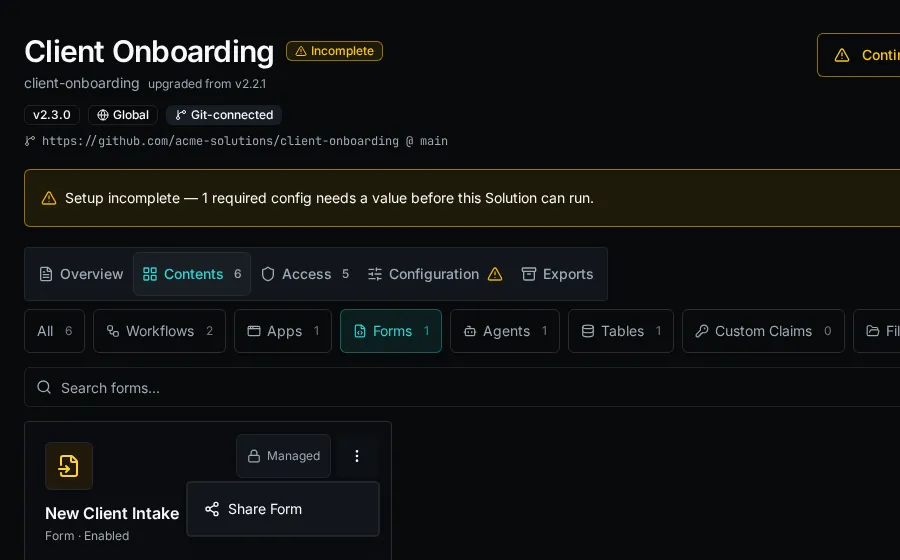
Share a private link
Section titled “Share a private link”Use Private Link when the recipient should sign in to Bifrost and use the form through normal form permissions.
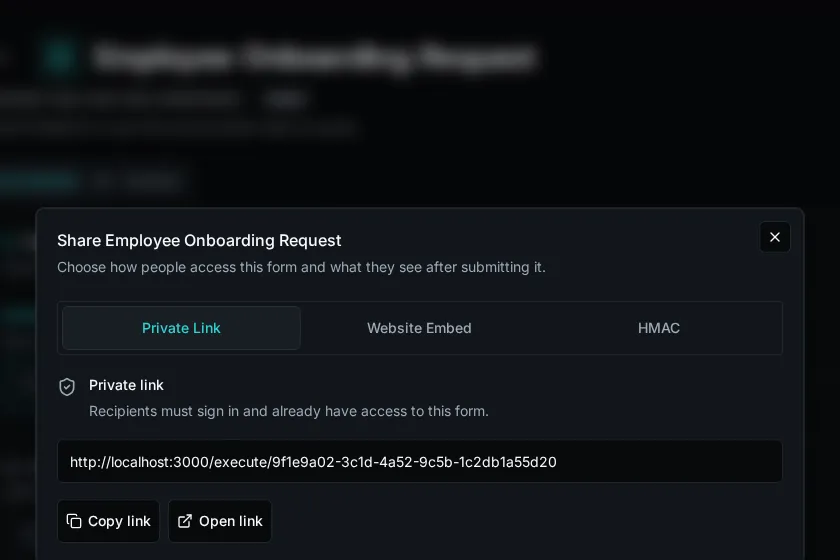
- Select Private Link.
- Copy the private form URL.
- Send it only to users who already have access to the form.
The private link does not bypass access control. If the user is not signed in, they are prompted to authenticate; if they do not have form access, Bifrost denies the request.
Embed with HMAC
Section titled “Embed with HMAC”Use HMAC when another system should open the form for a verified external context, such as a PSA custom tab or customer portal that can sign iframe URLs server-side.
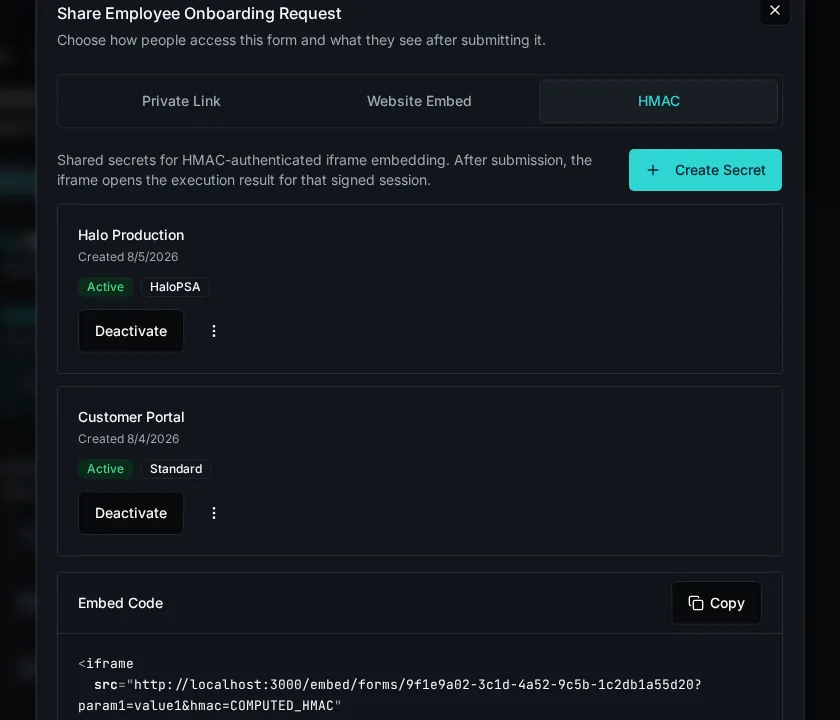
- Select HMAC.
- Select Create Secret.
- Name the secret for the system or environment that will sign requests.
- Choose the HMAC scheme:
- Standard signs all query parameters and fits most integrations.
- HaloPSA signs only
agent_idfor HaloPSA Custom Tab embeds.
- Copy the generated secret when it is shown. Bifrost does not show it again.
- Generate iframe URLs on your server by adding query parameters and a valid
hmacsignature to/embed/forms/{form_id}.
HMAC embed sessions are scoped to the form and the verified query parameters. The iframe opens the form without normal Bifrost chrome and, after submission, can show the execution result for that signed session.
Signing contract
Section titled “Signing contract”| Scheme | Message | Signature |
|---|---|---|
| Standard | Sort all query parameters except hmac by key, format each as key=value, then join with &. |
Lowercase hex HMAC-SHA256. |
| HaloPSA | The agent_id value only. |
Base64 HMAC-SHA256. |
import base64import hashlibimport hmacfrom urllib.parse import urlencode

def standard_signature(params: dict[str, str], secret: str) -> str:    message = "&".join(f"{key}={value}" for key, value in sorted(params.items()))    return hmac.new(secret.encode(), message.encode(), hashlib.sha256).hexdigest()

def halopsa_signature(agent_id: str, secret: str) -> str:    digest = hmac.new(secret.encode(), agent_id.encode(), hashlib.sha256).digest()    return base64.b64encode(digest).decode()

params = {"agent_id": "12345", "ticket_id": "67890"}params["hmac"] = standard_signature(params, "shared-secret")iframe_src = f"https://bifrost.example.com/embed/forms/FORM_ID?{urlencode(params)}"
For HaloPSA, set hmac to halopsa_signature(params["agent_id"], secret). Treat every query parameter except agent_id as unsigned in HaloPSA mode.
Embed on a public website
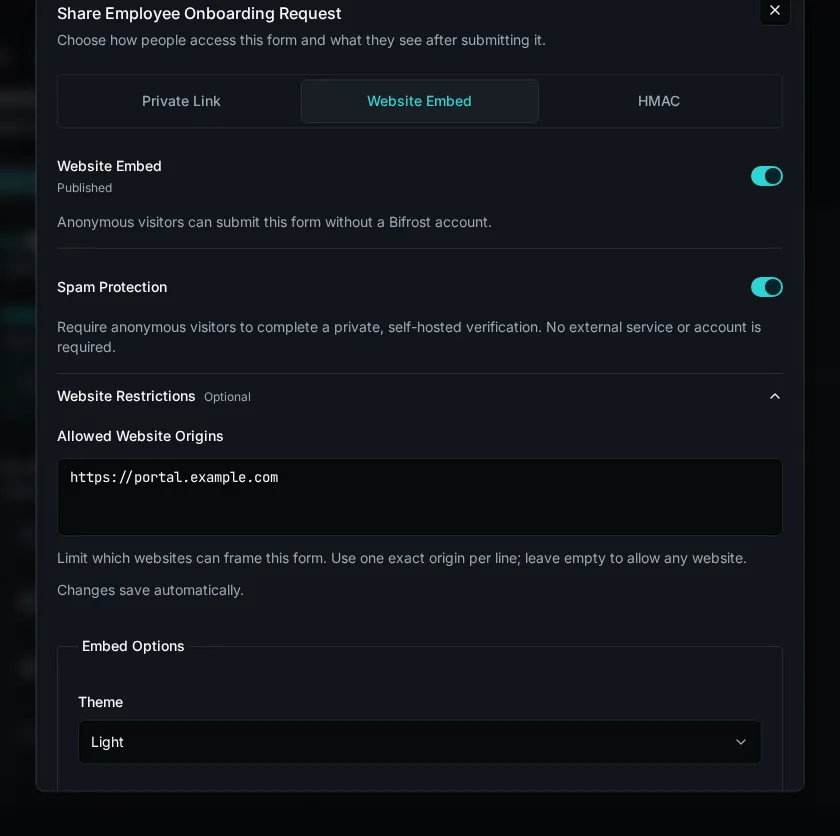
Section titled “Embed on a public website”Use Website Embed when anonymous visitors should submit the form without a Bifrost account.
Review public capabilities
Section titled “Review public capabilities”Bifrost reviews the form before it can be published. The confirmation lists the submission workflow, launch workflow, data providers, and file fields that anonymous visitors can use.
Fix every Cannot publish blocker before continuing. Warnings do not prevent publication, but should be reviewed before making the form public.
Configure access
Section titled “Configure access”- Select Website Embed.
- Leave Spam Protection enabled to require Bifrost’s self-hosted visitor verification.
- Expand Website Restrictions and enter one exact allowed origin per line, such as
https://portal.example.com. Leave the list empty only when any website may frame the form. - Turn on Published and approve the capability review.
Anonymous visitors can now submit the form without a Bifrost account. The public session is scoped to this form and its approved workflow, providers, uploads, and submission actions.
Copy the embed code
Section titled “Copy the embed code”- Choose Light, Dark, or System under Theme.
- Choose whether to show the form header or use a transparent background.
- Select Copy Embed Code and paste the iframe into your website.
The appearance controls only change the copied iframe URL. They do not alter the saved form.
Customize the confirmation
Section titled “Customize the confirmation”Under Confirmation Message, write the Markdown shown after a successful anonymous submission. Use Preview to check the result, then select Update.
Rotate or disable access
Section titled “Rotate or disable access”- Select Rotate to invalidate the current public URL and generate a replacement.
- Turn off Published to stop anonymous public access.
- Deactivate an HMAC secret to stop signed embeds that use that secret.
- Keep private links, HMAC embeds, and public website embeds separate. Disabling one mode does not disable the others.