
Configure AI Models
Configure provider connections, reusable model profiles, and runtime assignments
Configure AI provider connections and reusable model profiles to enable workflows, agents, and chat.
How Bifrost models AI
Section titled “How Bifrost models AI”Bifrost separates AI setup into three layers:
- provider connections store the API key, endpoint, and provider kind;
- model profiles pair a connection with a specific model id;
- assignments choose which profile is used for workflows, summarization, tuning, image generation, video generation, and Chat.
Chat only shows profiles that are enabled for Chat. The Chat default is the profile assigned to chat_default.
Supported providers
Section titled “Supported providers”Pick OpenAI, OpenRouter, Anthropic, Google, or OpenAI-Compatible as the provider kind. Bifrost fetches model lists from the connected provider after you save the API key, so the model picker reflects what that account can actually reach.
Use OpenAI-Compatible for custom OpenAI-shaped endpoints such as Azure OpenAI, Ollama, LM Studio, Groq, or Together.
Configure an LLM provider
Section titled “Configure an LLM provider”-
Navigate to Settings > AI > Models.
-
Create a provider connection. Pick the provider kind, give it a name, and add the API key.
-
Leave API Endpoint at the provider default for the built-in providers. Use a custom endpoint for OpenAI-compatible or OpenAI-shaped services.
-
Create a model profile from that connection and choose the model id you want Bifrost to use.
-
Decide whether the profile should be available in Chat. If it should be the Chat default, assign it to
chat_default. -
Use Test Connection on the provider connection if you want to confirm the key and endpoint before saving the profile.
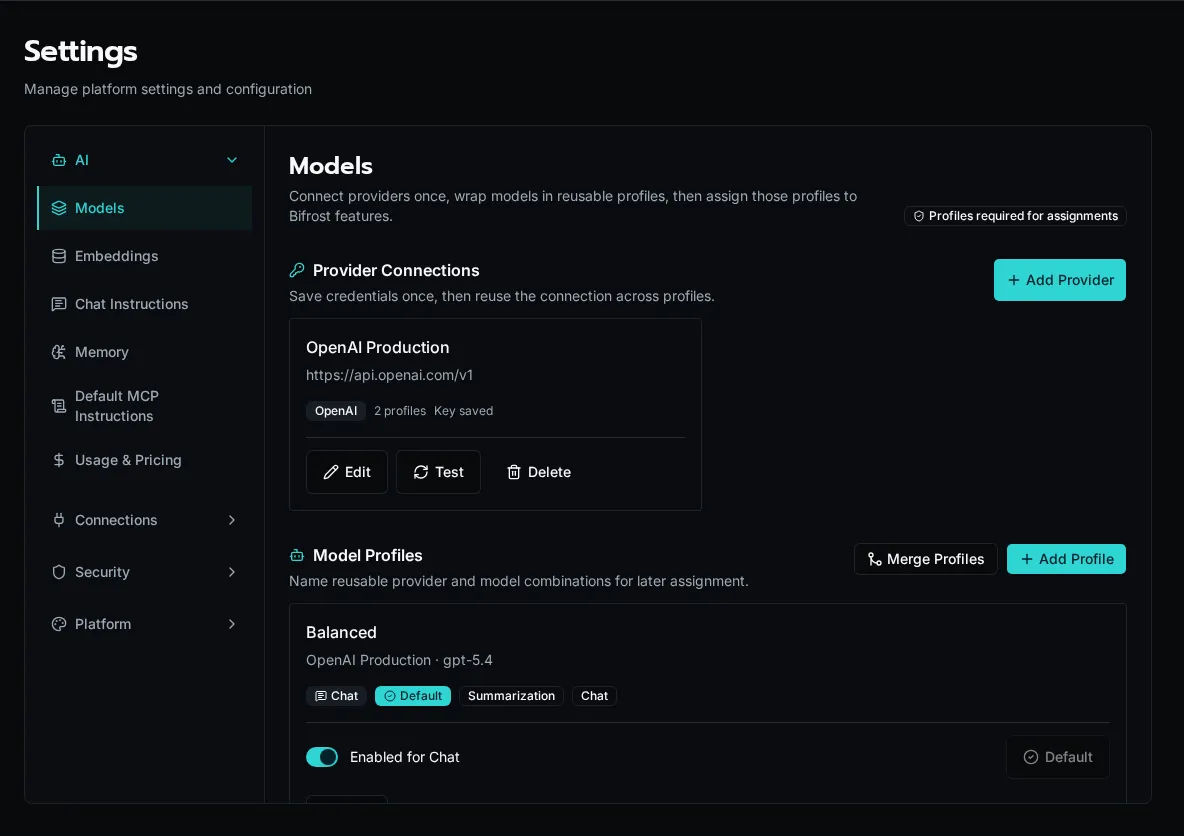
The Models page configures provider connections, reusable model profiles, and runtime assignments. The other AI settings pages cover embeddings, Chat instructions, memory, default MCP instructions, and usage pricing.
Configure reusable profiles
Section titled “Configure reusable profiles”Create one profile per provider/model combination you want to reuse. Profiles can carry capability metadata, and Bifrost uses that metadata in Chat to decide whether to offer tool calling, image input, and PDF input.
| Field | Meaning |
|---|---|
| Name | The label shown in the admin UI |
| Connection | The saved provider connection |
| Model | The provider model id |
| Enabled for Chat | Whether the profile appears in Chat |
| Capabilities | Optional metadata about tool calling, image input, and PDF input |
The first profile you save becomes the baseline for Bifrost’s required assignments. After that, you can reassign each runtime slot independently without changing the profile itself.
Chat defaults
Section titled “Chat defaults”The Assignments section maps a profile to each runtime use case. The important ones for day-to-day work are:
| Assignment | Used by |
|---|---|
primary |
General AI work and SDK completions |
summarization |
Summaries and background writeups |
tuning |
Agent tuning workflows |
image_generation |
Image generation workflows |
video_generation |
Video generation workflows |
chat_default |
The profile selected when Chat starts |
Chat only lists profiles with Enabled for Chat turned on. If the profile bound to chat_default is disabled, Bifrost keeps it enabled so the default Chat route stays valid.
Capabilities
Section titled “Capabilities”Capabilities are stored per profile and normalized against the exact provider/model/endpoint combination that produced them. If you change any of those three values, Bifrost treats the old capability record as stale and recomputes the profile as unknown until you verify it again.
Use the capability controls when you want to record whether a profile supports tool calling, image input, or PDF input. Verified capabilities come from a live probe; manual capabilities are for administrator-confirmed settings.
Memory and required instructions
Section titled “Memory and required instructions”The Memory switch enables private, user-controlled memory for Bifrost-connected assistants. It depends on the embedding configuration. Users can still opt out and remove saved memories from User Settings → Preferences.
Global Instructions apply to every task performed through the default Bifrost MCP endpoint. Organization instructions are managed from each organization’s Manage → Instructions tab and apply after the global layer. See Manage AI memory and instructions.
OpenAI-compatible endpoints
Section titled “OpenAI-compatible endpoints”The API Endpoint field overrides the base URL passed to the provider SDK. Use it with OpenAI-Compatible for OpenAI-shaped services such as Azure OpenAI, Together, Groq, Ollama, vLLM, or LM Studio.
Example: OpenRouter
Section titled “Example: OpenRouter”OpenRouter exposes an OpenAI-compatible API and gives you a single key for models across many providers.
-
Set Provider to OpenRouter.
-
Leave the endpoint at
https://openrouter.ai/api/v1unless you have a custom OpenRouter-compatible gateway. -
Paste your OpenRouter key (
sk-or-...) into API Key. -
Click Test Connection. Bifrost calls OpenRouter’s
/modelsendpoint and populates the model dropdown with everything available to your key. -
Pick the model id you want to reuse and save the profile.
Other compatible endpoints
Section titled “Other compatible endpoints”| Service | Provider type | API Endpoint |
|---|---|---|
| Azure OpenAI | OpenAI-Compatible | https://<resource>.openai.azure.com/openai/deployments/<deployment> |
| Ollama (local) | OpenAI-Compatible | http://localhost:11434/v1 |
| LM Studio (local) | OpenAI-Compatible | http://localhost:1234/v1 |
| Groq | OpenAI-Compatible | https://api.groq.com/openai/v1 |
| Together | OpenAI-Compatible | https://api.together.xyz/v1 |
When the provider is OpenAI-shaped, Bifrost detects whether the endpoint supports the Responses API or needs Chat Completions and caches that choice on the profile. If you change the provider, endpoint, or API key, Bifrost clears the cached transport and probes again on the next request.
Embedding configuration
Section titled “Embedding configuration”For knowledge base / RAG features, configure embeddings:
-
In Settings > AI > Embeddings, open the embedding settings.
-
Choose to use the same provider as the LLM or configure separately.
-
For OpenAI, embeddings use
text-embedding-3-small(1536 dimensions).
Embeddings can use a dedicated connection or inherit the provider connection from the LLM configuration. When the embedding model changes its vector size, Bifrost prompts you to re-embed existing knowledge rows before the new config takes effect.
Usage tracking
Section titled “Usage tracking”Bifrost tracks all AI usage:
- Input/output tokens per call
- Cost calculation based on configured pricing
- Aggregation by workflow, conversation, and organization
View usage and pricing in Settings > AI > Usage & Pricing. Broader operational usage reports are available under Reports > Usage.
Pricing configuration
Section titled “Pricing configuration”Configure per-model pricing in Settings > AI > Usage & Pricing:
| Field | Description |
|---|---|
| Provider | Provider kind for the profile |
| Model | Model ID as returned by the provider |
| Input Price | Cost per 1M input tokens |
| Output Price | Cost per 1M output tokens |
Next steps
Section titled “Next steps”- Using AI in Workflows — Completions and streaming
- Knowledge Bases — RAG with hybrid semantic and full-text search