
Manage Files and Access Policies
Browse Bifrost file shares, upload files, configure path policies, and test effective access.
The Files page gives platform administrators one place to browse storage locations, manage path-based policies, and verify what a user can do before a workflow or app touches a file.
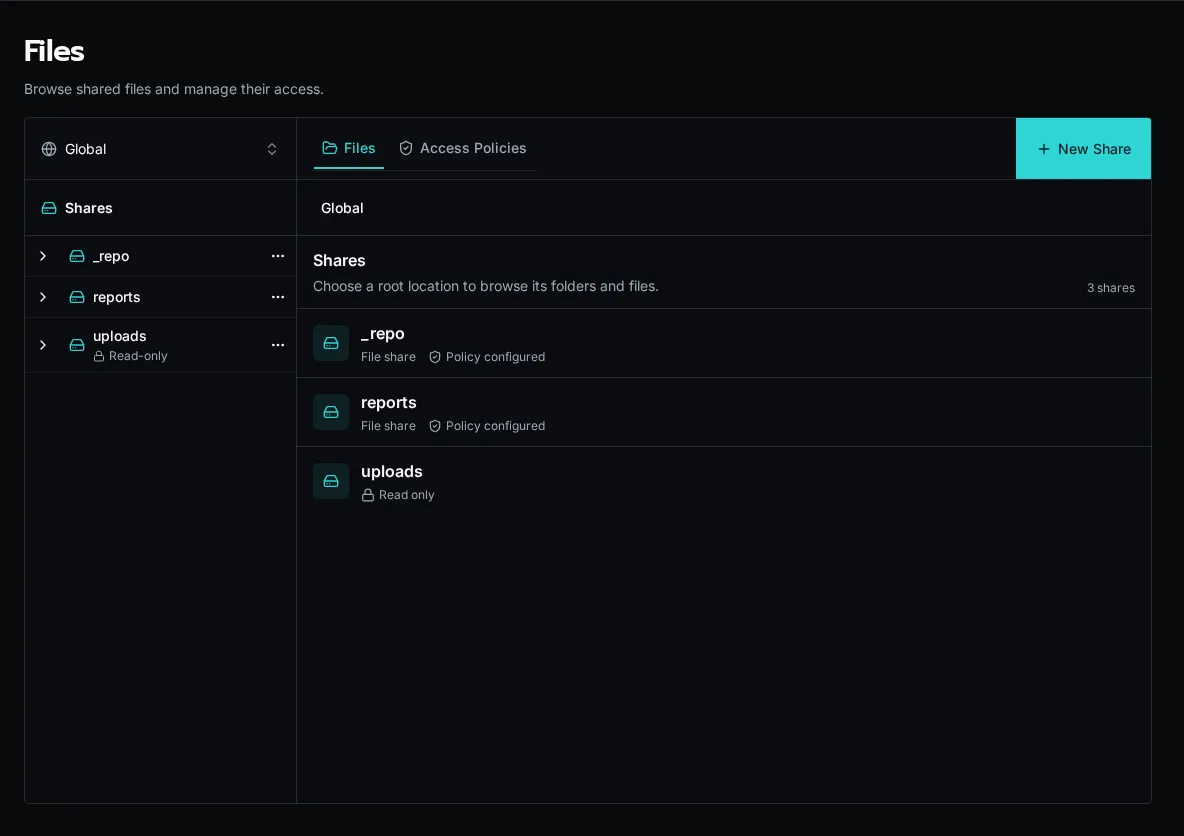
Browse a file scope
Section titled “Browse a file scope”-
Open Files from the sidebar.
-
Choose Global or an organization from the scope selector.
-
Select a share, then open folders from the center pane.
-
Select a file to preview it and inspect effective access in the right pane.
Use New Share to create a writable storage location. The Upload action appears after you select a writable share or folder. The built-in uploads location is read-only from this surface.
Manage path policies
Section titled “Manage path policies”Open the Policies tab to review every policy in the selected scope. A policy grants one or more actions—read, write, delete, or list—when its rules match. Policies can target a whole share, a folder prefix, or one file.
When several policies match a path, Bifrost evaluates the most specific path first. Use the effective-access panel on a selected file or folder to see the resolved cascade before editing it.
Grant dynamic path scopes with a claim
Section titled “Grant dynamic path scopes with a claim”When users have many changing folder grants, store one user_id and one path_prefix per row in a grant table. Define allowed_resource_paths as a list claim over the caller’s rows, then use one policy at the location root:
policies: - name: read_granted_resources actions: [read] when: path_within_any: - { file: path } - { claims: allowed_resource_paths }path_within_any is available only in file policies. It matches the exact scope or a slash-delimited descendant, so sites/123 does not match sites/123-annex. Missing, malformed, and empty/root claim values deny access.
Use immutable UUID path segments, such as documents/sites/<site UUID>/categories/<category UUID>/pdf/<document UUID>/file.pdf. Put view and source-download representations under separate segments when those permissions differ. Renaming a display label then leaves grants and stored paths unchanged.
Permission to a descendant does not imply permission to list every ancestor. Use an authorization-filtered table to build navigation, then authorize the selected file when it is opened.
Test access
Section titled “Test access”Choose Test Access from a file, folder, or policy action. Select a user and action, then run the test. The result identifies whether access is allowed and which policy or rule decided it.