
Configure SSO
Set up single sign-on with Microsoft, Google, or OIDC
Configure single sign-on (SSO) to allow users to log in with their existing identity provider.
Overview
Section titled “Overview”SSO is configured in Settings > Authentication within the Bifrost UI. All configuration is stored in the database—no environment variables are required.
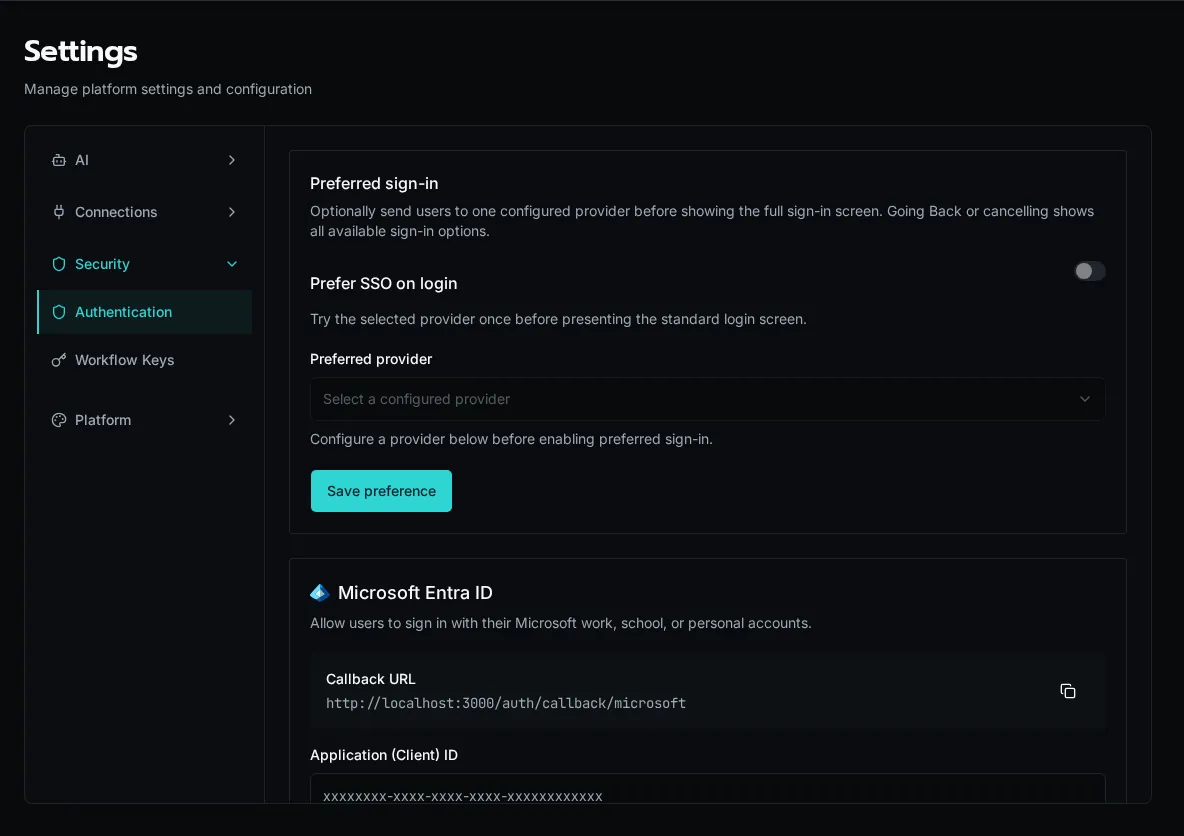
Supported providers:
- Microsoft Entra ID - Azure Active Directory
- Google Workspace - Google accounts
- Generic OIDC - Any OpenID Connect provider
Microsoft Entra ID
Section titled “Microsoft Entra ID”-
Create App Registration in Azure
Go to Entra ID > App registrations > + New registration:
- Name: Bifrost SSO
- Supported account types: Choose based on your needs:
- Single tenant - Only your organization
- Multitenant - Any Azure AD directory
- Redirect URI: Web platform,
https://your-domain.com/auth/callback/microsoft
-
Configure Authentication
In your app registration, go to Authentication:
- Ensure the Web redirect URI is correct
-
Add Client Secret
Go to Certificates & secrets > + New client secret:
- Set description and expiration
- Copy the secret value immediately (it won’t be shown again)
-
Note Required Values
From the Overview page, copy:
- Application (client) ID
- Directory (tenant) ID
-
Configure in Bifrost
Go to Settings > Authentication and add Microsoft:
- Client ID: Application (client) ID from Azure
- Client Secret: The secret value you created
- Tenant ID: One of:
- Your specific tenant ID (single tenant only)
organizations(any work/school account)common(work/school + personal Microsoft accounts)
Required Permissions
Section titled “Required Permissions”Microsoft SSO requests these scopes automatically:
openid- Required for OIDCprofile- User’s display nameemail- User’s email addressUser.Read- Basic user profile from Graph API
No admin consent is required for these scopes.
-
Create OAuth Client in Google Cloud
Go to Google Cloud Console > APIs & Services > Credentials:
- Click + Create Credentials > OAuth client ID
- Application type: Web application
- Name: Bifrost SSO
- Authorized redirect URIs:
https://your-domain.com/auth/callback/google
-
Configure OAuth Consent Screen
If prompted, set up the OAuth consent screen:
- User type: Internal (Google Workspace only) or External
- App name, support email, developer contact
- Scopes: Add
email,profile,openid
-
Copy Credentials
After creating the client, copy:
- Client ID
- Client Secret
-
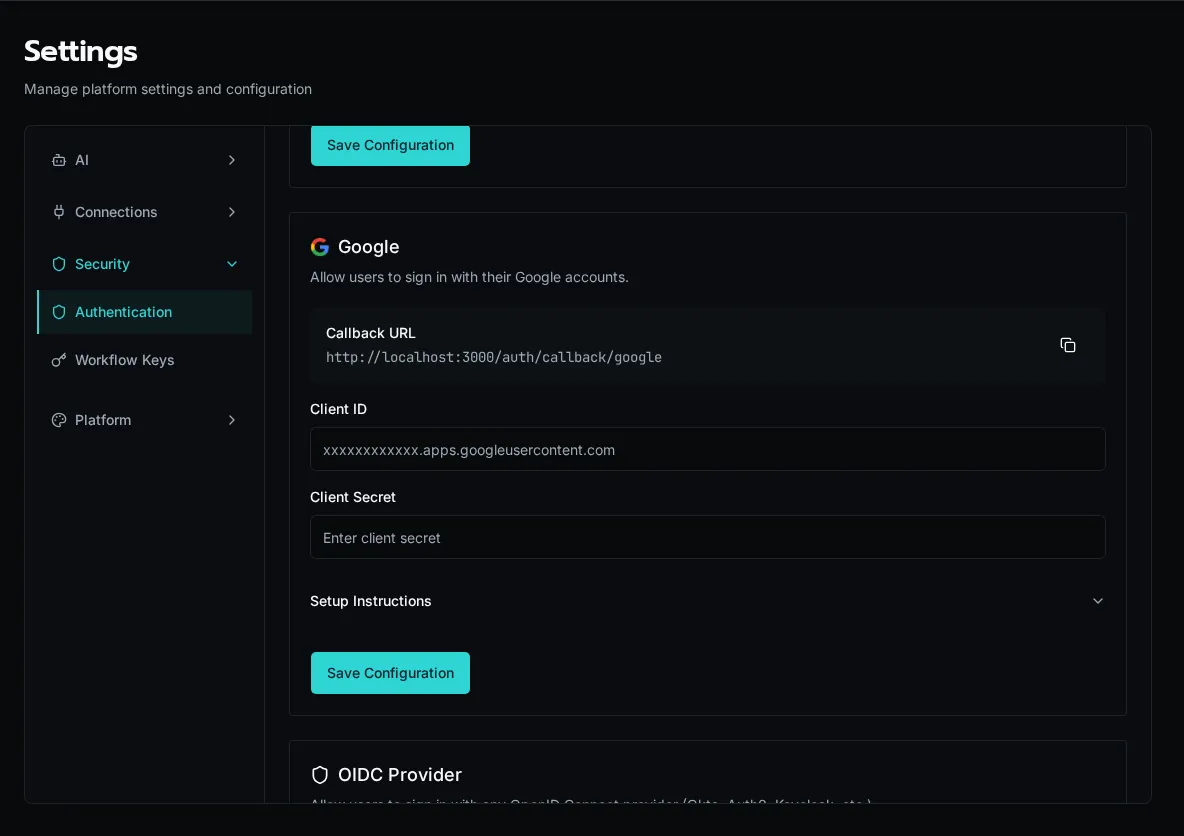
Configure in Bifrost
Go to Settings > Authentication and add Google:
- Client ID: From Google Cloud Console
- Client Secret: From Google Cloud Console
Generic OIDC
Section titled “Generic OIDC”Use any OpenID Connect-compliant identity provider (Okta, Auth0, Keycloak, etc.).
-
Create Application in Your IdP
Register a new OIDC/OAuth application:
- Application type: Web application
- Redirect URI:
https://your-domain.com/auth/callback/oidc - Grant type: Authorization Code
-
Get Discovery URL
Find your IdP’s OIDC discovery endpoint. Common formats:
- Okta:
https://your-org.okta.com/.well-known/openid-configuration - Auth0:
https://your-tenant.auth0.com/.well-known/openid-configuration - Keycloak:
https://keycloak.example.com/realms/your-realm/.well-known/openid-configuration
- Okta:
-
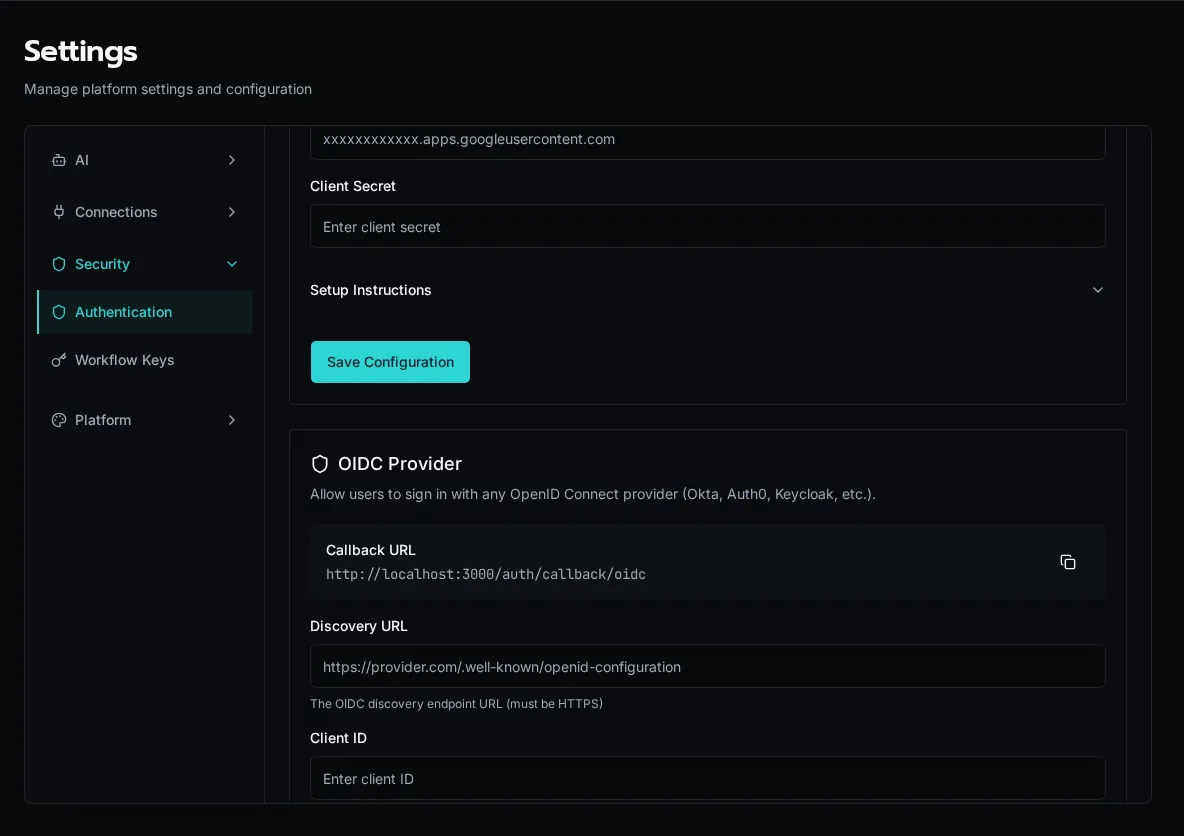
Configure in Bifrost
Go to Settings > Authentication and add OIDC:
- Discovery URL: Your IdP’s
.well-known/openid-configurationURL - Client ID: From your IdP
- Client Secret: From your IdP
- Display Name (optional): Custom text for the login button (e.g., “Sign in with Okta”)
- Discovery URL: Your IdP’s
Multiple Providers
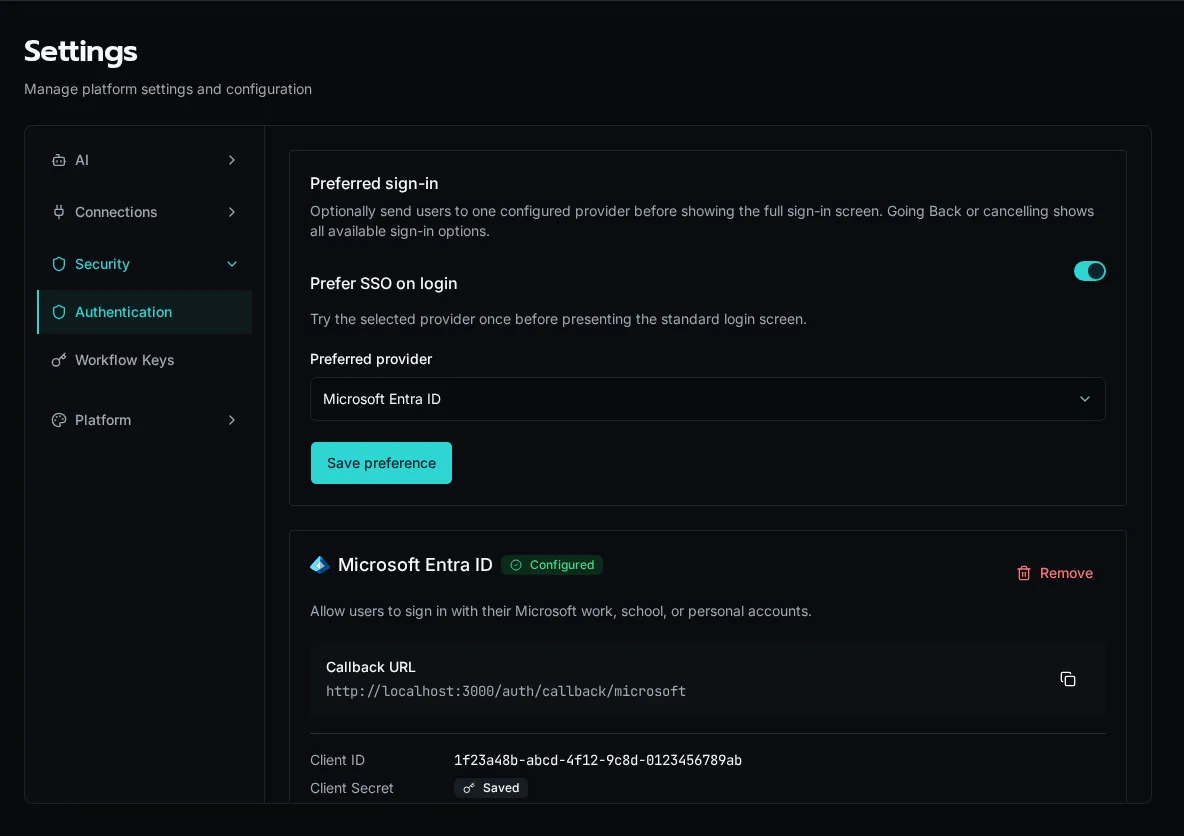
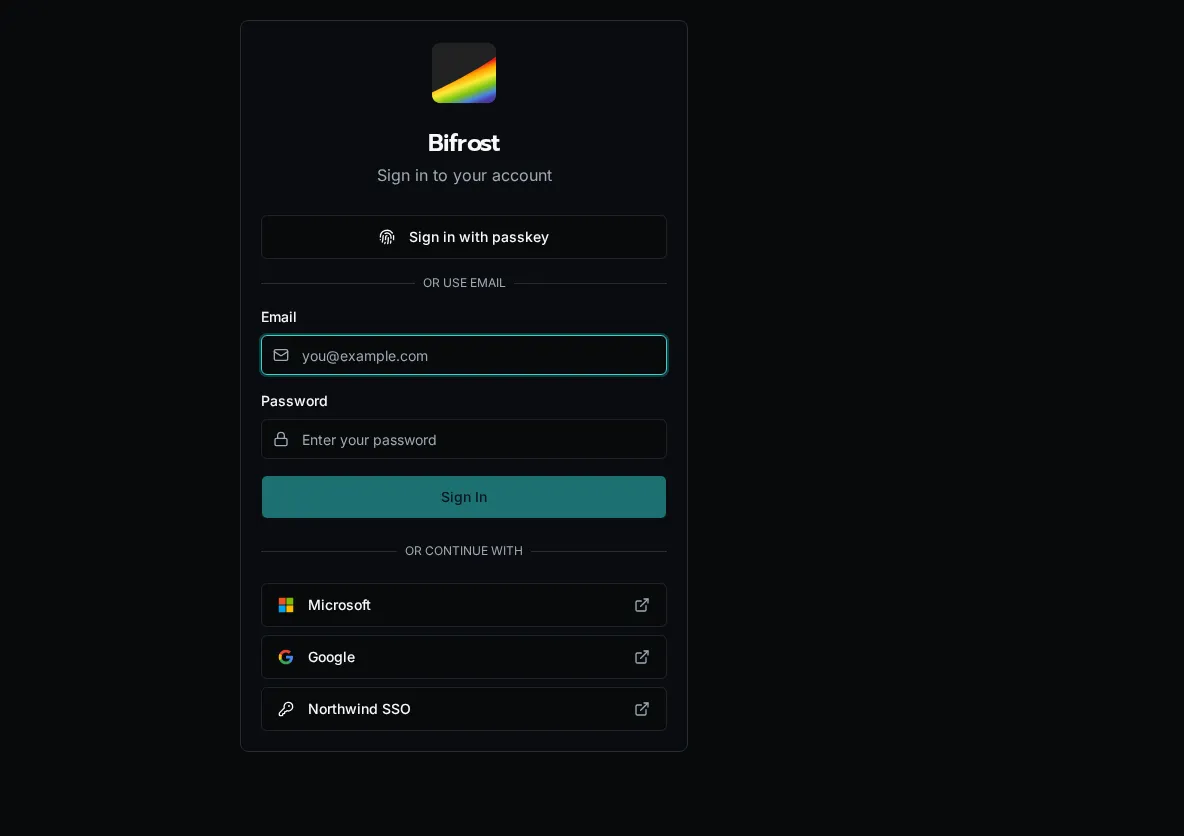
Section titled “Multiple Providers”You can enable multiple SSO providers simultaneously. Once all three are configured, the SSO settings page shows their status, and the login page surfaces a button per provider.
Prefer one provider at sign-in
Section titled “Prefer one provider at sign-in”Enable Preferred sign-in to send users to one configured provider before showing the standard login form. Choose the provider in Settings > Authentication. If the provider is unavailable or the redirect fails, users return to the login page and can choose another sign-in method.
Keep the setting disabled when users regularly sign in through different providers or with local credentials.
Troubleshooting
Section titled “Troubleshooting”Redirect URI Mismatch
Section titled “Redirect URI Mismatch”Error: “redirect_uri_mismatch” or “invalid redirect”
The callback URL in Bifrost must exactly match what’s registered in your IdP:
- Check for trailing slashes
- Verify protocol (https vs http)
- Confirm the domain is correct
User Not Authorized
Section titled “User Not Authorized”For Google with Internal consent screen or Microsoft with single tenant:
- Ensure the user’s email domain matches your organization
- Check that the user exists in the directory
Token Validation Failed
Section titled “Token Validation Failed”For OIDC providers:
- Verify the discovery URL is accessible
- Check that client ID and secret are correct
- Ensure the IdP’s certificates are valid
Security Notes
Section titled “Security Notes”- All client secrets are encrypted at rest
- Tokens are validated server-side before creating sessions
- SSO sessions follow the same expiration as regular sessions