
Set Up OAuth Integration
Connect to external APIs with OAuth in 20 minutes
Set up a Microsoft Graph integration with OAuth to access user data. This example shows the full pattern for any OAuth-based API.
What You’ll Build
Section titled “What You’ll Build”An integration with Microsoft Graph that reads user information using OAuth.
Prerequisites
Section titled “Prerequisites”- Installation complete
- Administrator permissions to Entra ID
Create Entra ID App Registration
Section titled “Create Entra ID App Registration”-
Go to Entra ID → App registrations
-
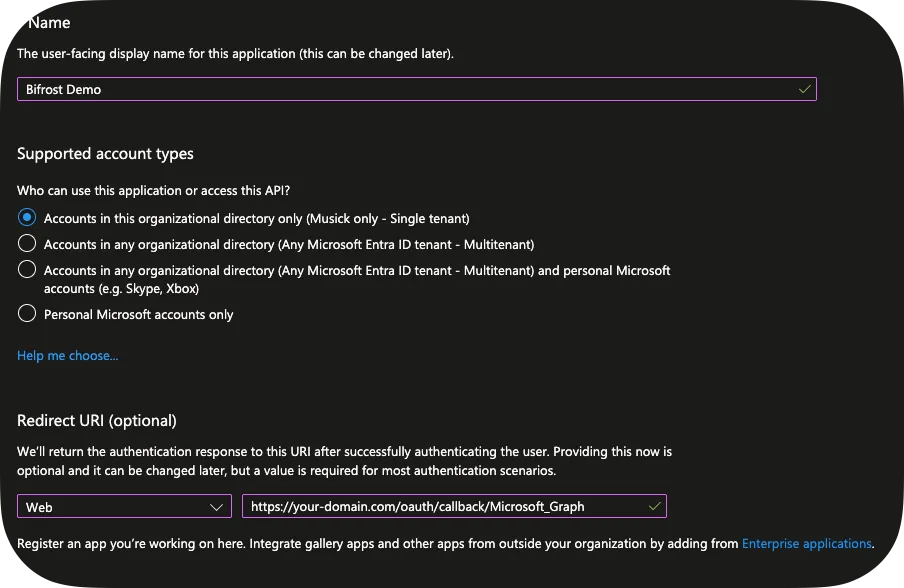
Click + New registration:
- Name: “Bifrost Demo”
- Supported account type: Single Tenant
- Redirect URI:
https://your-domain.com/oauth/callback/Microsoft_Graph
Please note that you’ll change the Redirect URI later as Bifrost will get you the real redirect URL.
-
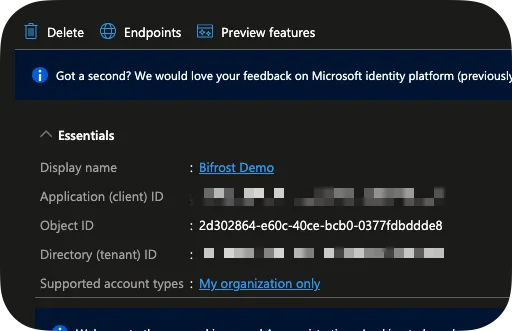
Copy Application (client) ID and Tenant ID
-
Click Endpoints and copy your
OAuth 2.0 authorization endpoint (v2)andOAuth 2.0 token endpoint (v2).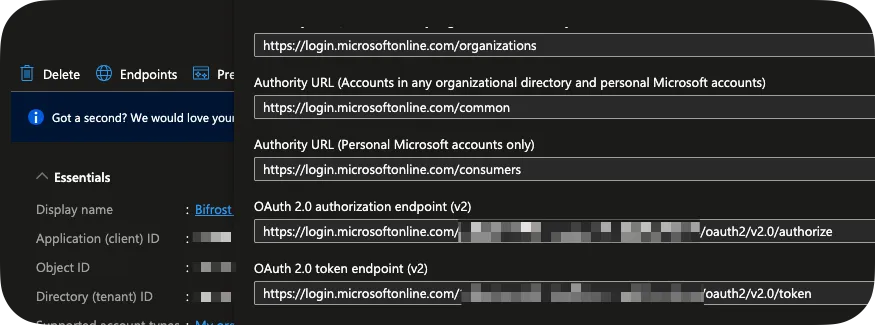
-
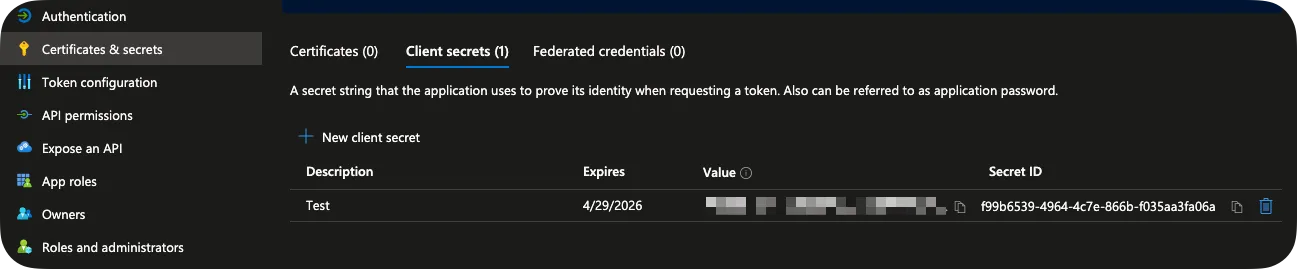
Go to Certificates & secrets → + New client secret:
- Set expiration to 6 months
- Copy secret value immediately
-
Go to API permissions:
- Click + Add permission → Microsoft Graph → Delegated
- Add
Directory.Read.All - Click Grant admin consent
Create Integration in Bifrost
Section titled “Create Integration in Bifrost”-
Click Integrations in the sidebar
-
Click the + button
-
Fill in details:
- Organization: Global, or scoped to a specific organization
- Name: Microsoft_Graph
- Description: Microsoft Graph API connection
- Authentication: OAuth
You can skip Entity Data Provider for now. For Default Entity ID, you can use
common. -
Select Create Integration. On the integration page, open the OAuth status control and select Set Up OAuth.
-
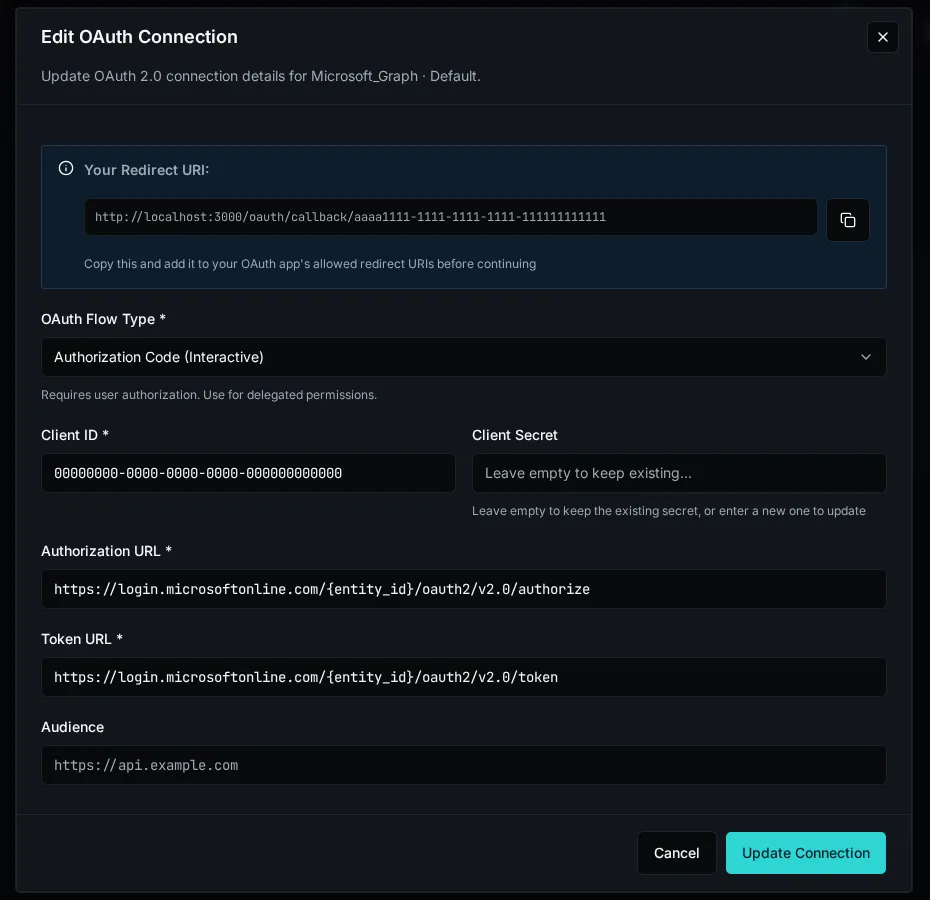
In the OAuth dialog, enter the following.
-
OAuth Flow Type: Authorization Code (Interactive)
-
Client ID: The Client ID you copied earlier
-
Client Secret: The Client Secret you copied earlier
-
Authorization URL: The OAuth 2.0 authorization endpoint (v2)
Use
{entity_id}in both endpoint URLs to substitute your Default Entity ID. You can also entercommondirectly in the URLs. -
Token URL: The OAuth 2.0 token endpoint (v2)
-
Scope: offline_access Directory.Read.All
-
-
Copy the Redirect URI into your app registration and select Create Connection in Bifrost.
Authorize the Connection
Section titled “Authorize the Connection”-
Open the OAuth status control on your integration and select Connect.
-
Sign in with Microsoft and consent to permissions
-
You’ll be redirected back to Bifrost
-
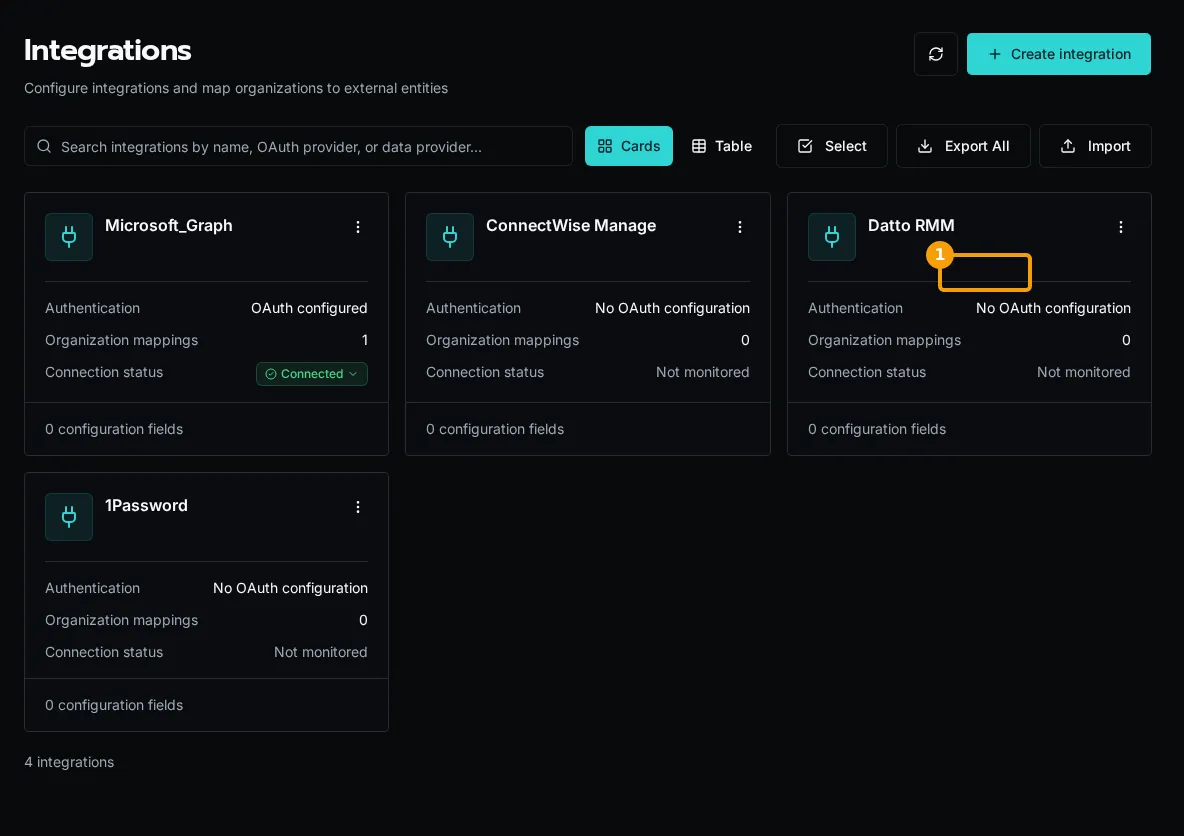
Connection status changes to Connected
Use Integration in Workflow
Section titled “Use Integration in Workflow”-
In the Code Editor, create a new workflow called
list_users.pyfrom bifrost import workflow, integrationsimport httpximport logginglogger = logging.getLogger(__name__)@workflow(name="list_users",description="List users from Microsoft Graph")async def list_users():"""Fetch user information from Microsoft Graph."""# Get integration with OAuth credentialsintegration = await integrations.get("Microsoft_Graph")if not integration or not integration.oauth:return {"error": "Microsoft Graph not configured"}logger.info("Retrieved Microsoft Graph integration")async with httpx.AsyncClient() as client:response = await client.get("https://graph.microsoft.com/v1.0/users",headers={"Authorization": f"Bearer {integration.oauth.access_token}"})response.raise_for_status()users = response.json()["value"]return users -
Use
CTRL/CMD + Sto save. -
On the Workflows screen, click Execute Workflow on your
list_usersworkflow.
Token Refresh
Section titled “Token Refresh”Bifrost automatically refreshes expired tokens when your connection has a refresh token. If refresh fails (e.g., password changed), you’ll see the error on the Integrations screen.
The integrations list summarizes the default connection and organization overrides:
- Connected — every connection is healthy
- Degraded — some connections are healthy and some have failed
- Failed — every connection has failed
- None — no OAuth connection exists yet
Click a status to see how many connections are connected, failed, or in another state.
Multiple Organizations
Section titled “Multiple Organizations”Integrations support per-organization OAuth tokens:
- Each org can have its own Microsoft Graph connection
- Workflows automatically use the executing org’s credentials
- Falls back to integration-level defaults if no org-specific token
# Automatically uses the right token for the current orgintegration = await integrations.get("Microsoft_Graph")token = integration.oauth.access_tokenYou can also specify the organization:
# Access a specific organization's integrationintegration = await integrations.get("Microsoft_Graph", org_id="org-123")
# Access platform-level integration defaults (no org mapping)integration = await integrations.get("Microsoft_Graph", scope=None)
Next Steps
Section titled “Next Steps”- Creating Integrations - Full integration setup
- SDK Generation - Generate API clients
- Secrets Management - Secure credential storage