
Configuring Bifrost's MCP server
Enable external MCP access, scope tools by role, and connect Bifrost to your AI client
Bifrost ships with a built-in Model Context Protocol server. Once enabled, any MCP-aware client (Claude Desktop, Copilot, Cursor, Open WebUI) can connect with a Bifrost user account, discover an appropriate agent, and use that agent’s approved tools.
What MCP exposes
Section titled “What MCP exposes”The root endpoint (/mcp) exposes four stable gateway tools:
bifrost_find_agents— find agents relevant to the user’s task.bifrost_get_agent— load the selected agent’s live instructions and tool catalog.bifrost_get_tool_schema— fetch the current input schema for one tool.bifrost_execute_tool— run that tool through the selected agent’s access boundary.
This keeps client configuration stable as workflows and system tools change. The connecting user’s roles determine which agents discovery returns, and every schema lookup and execution re-checks access. A client that needs one fixed native tool surface can instead connect to /mcp/{agent_id}; that endpoint exposes only the selected agent’s configured workflow and system tools.
Enable the MCP server
Section titled “Enable the MCP server”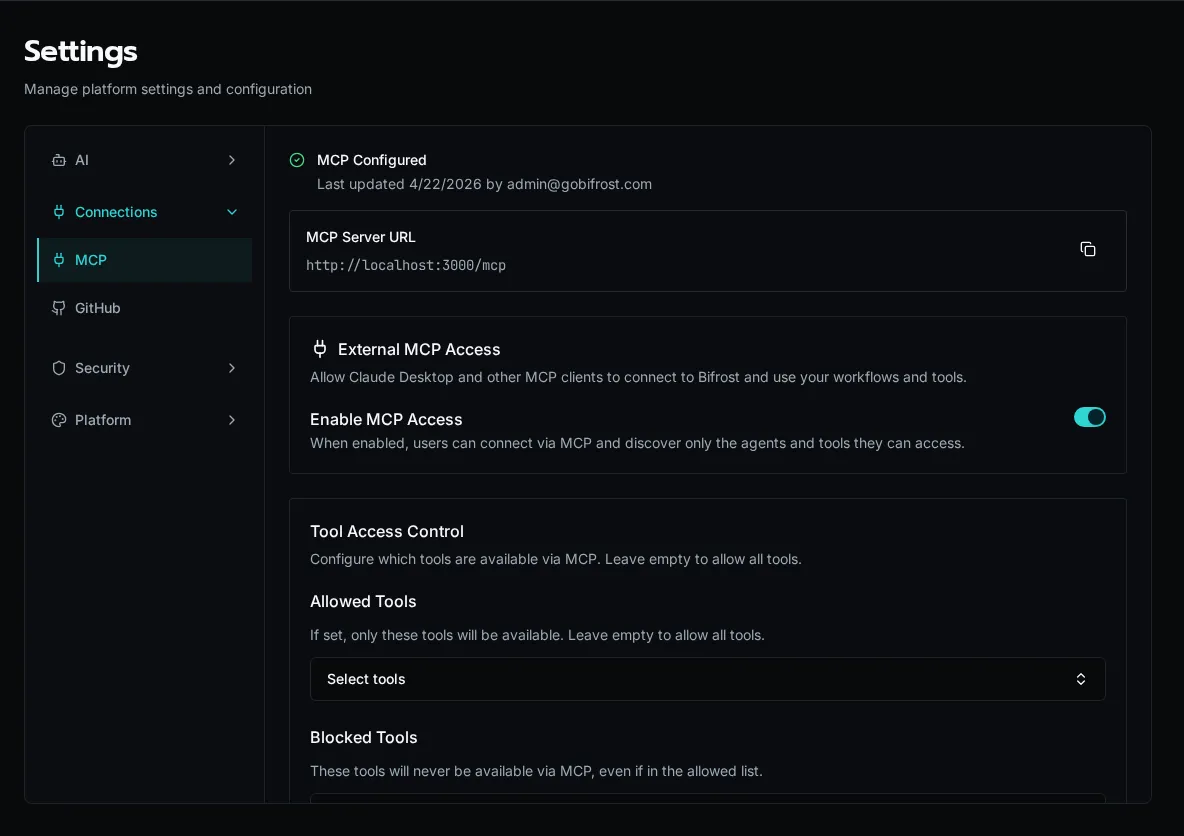
-
Go to Settings → MCP. The page shows the public MCP Server URL (
https://your-instance/mcp) and current configuration status. -
Toggle Enable MCP Access on. Per-user visibility is enforced by role; the toggle is a global kill-switch.
-
Click Save Configuration. The status banner switches to MCP Configured.
Restrict the agent tool surface
Section titled “Restrict the agent tool surface”Use Allowed Tools and Blocked Tools to control which underlying tools agents can expose through MCP. The four root gateway tools remain available whenever MCP is enabled.
-
On the Settings → MCP page, scroll to Tool Access Control.
-
Use Allowed Tools to whitelist specific underlying tools — leave empty to allow all. Picking even one tool flips the list to allow-only mode.
-
Use Blocked Tools to subtract tools regardless of the allow list. Useful for hiding
delete_*orreplace_*operations from production. -
Save. Root clients see the updated catalogs on their next agent lookup; agent-scoped clients see the updated native surface on their next tool-list refresh.
Confirm the server is reachable
Section titled “Confirm the server is reachable”-
Copy the MCP Server URL from the settings page.
-
Hit
GET <url>/.well-known/oauth-authorization-server/mcpfrom any HTTP client. You should see a JSON document advertising the OAuth endpoints (issuer, authorization_endpoint, token_endpoint). -
The discovery endpoints serve cross-origin (CORS-enabled) so browser-based clients can connect without a proxy.
How auth works
Section titled “How auth works”Bifrost implements OAuth 2.1 with PKCE (RFC 7636), dynamic client registration (RFC 7591), and discovery (RFC 8414 / 9728). When a client connects:
- The client hits
/registerwith its name + redirect URIs and gets aclient_id. - The client sends the user to
/authorize. Bifrost redirects to its login page if the user isn’t already signed in. - After login Bifrost issues an authorization code, the client exchanges it at
/tokenwith PKCE, and gets a Bifrost access token. - Subsequent MCP requests carry that token; tool visibility is filtered against the user’s roles.
Tokens expire after 30 minutes. Clients refresh transparently with the issued refresh token.
Roles and tool visibility
Section titled “Roles and tool visibility”Agent discovery and tool access are computed per request from the connecting user’s roles. To grant a user access to a workflow tool:
- Tag the workflow
is_tool=True(or@tool) and assign it to an agent. - Set the agent’s Access Level to Role-based and assign the right roles.
- Add the user to one of those roles. The agent then appears in gateway discovery, and its approved tool appears in the agent catalog.
System tools (file ops, agent CRUD, etc.) follow the same role check via the agent’s system_tools allow list.