
Permissions & Roles
How roles, organization reach, run identities, and workflow permissions work together.
Bifrost checks both who may launch something and what its automation may do. Access to an app, form, or agent does not grant unrestricted access to tables, files, secrets, or integrations.
Roles and Organization Reach
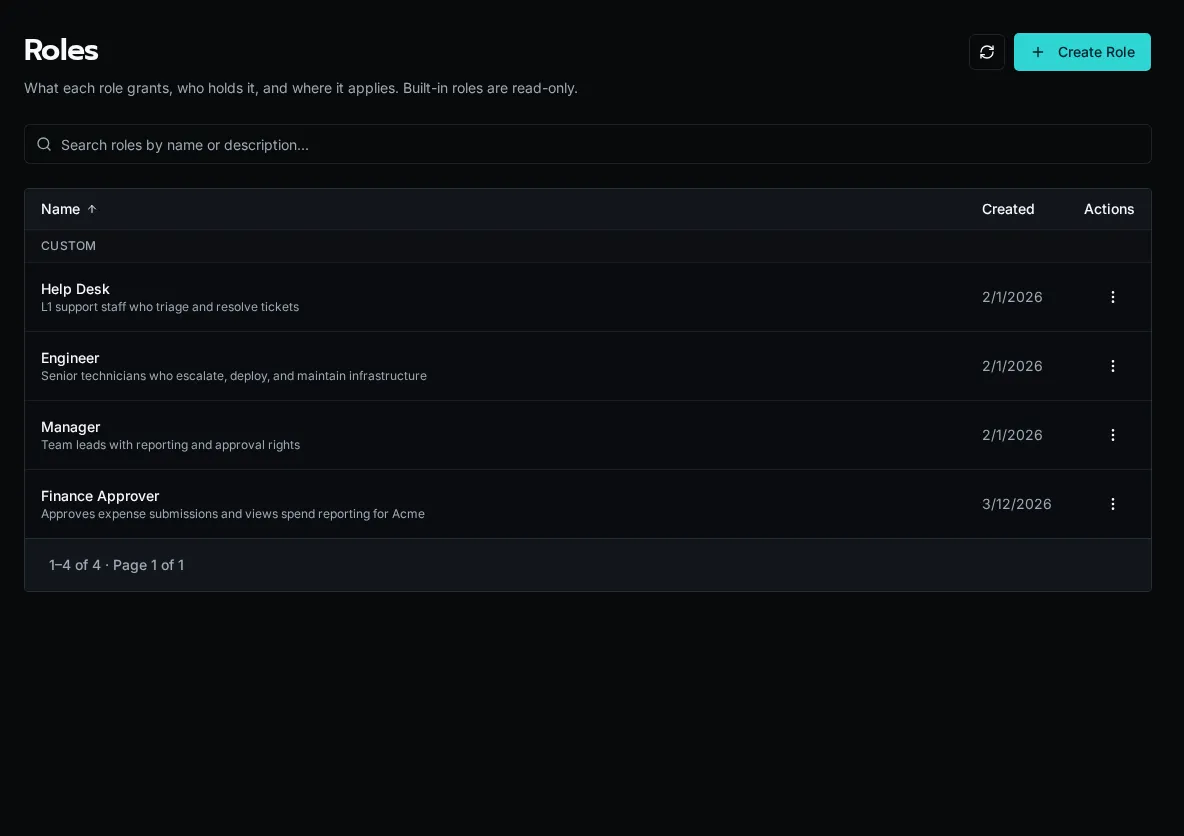
Section titled “Roles and Organization Reach”Roles grant named permissions. Their organization or platform boundaries determine where those permissions apply. People and custom identities have a base role and may have additional role assignments. Built-in roles are read-only; custom roles let you define permissions for your own responsibilities.
Manage roles from Roles and assignments from Users. A provisioning default chooses the base role for new accounts; changing that default does not rewrite existing assignments. See Base Role Defaults.
Discovering and Launching Resources
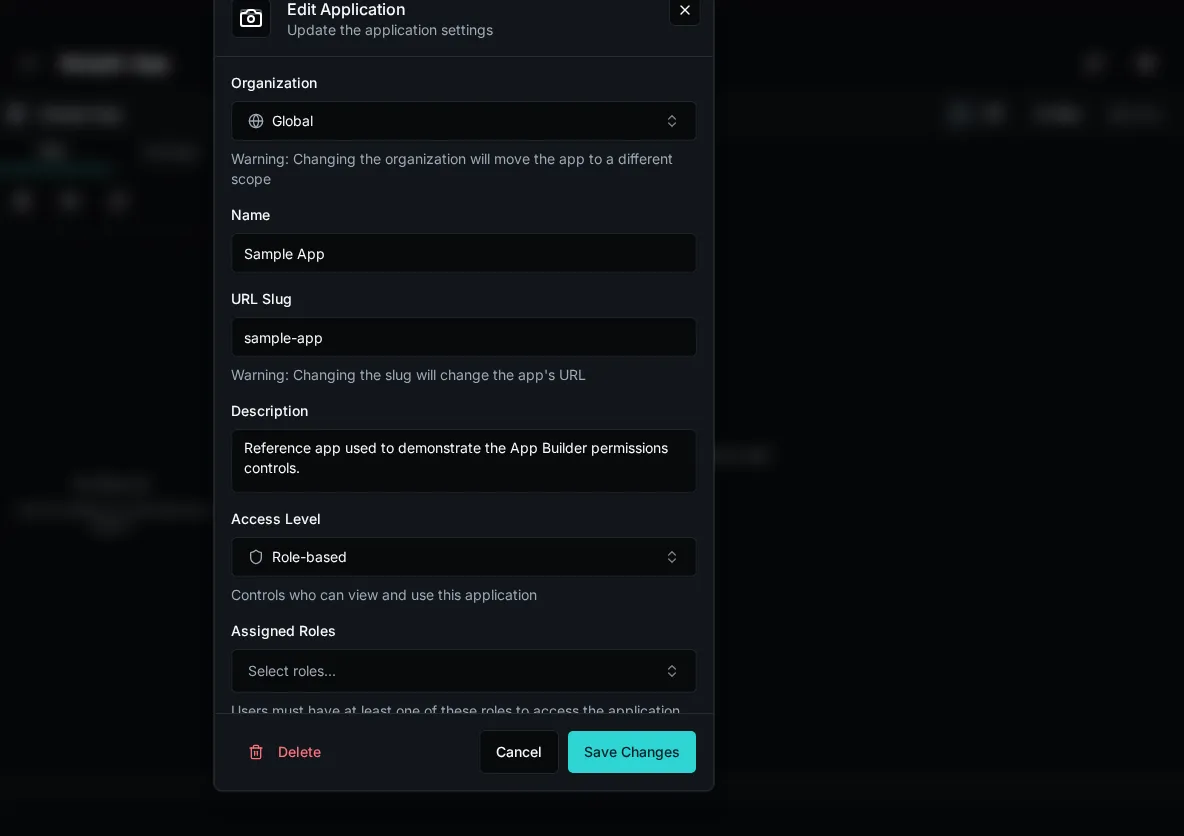
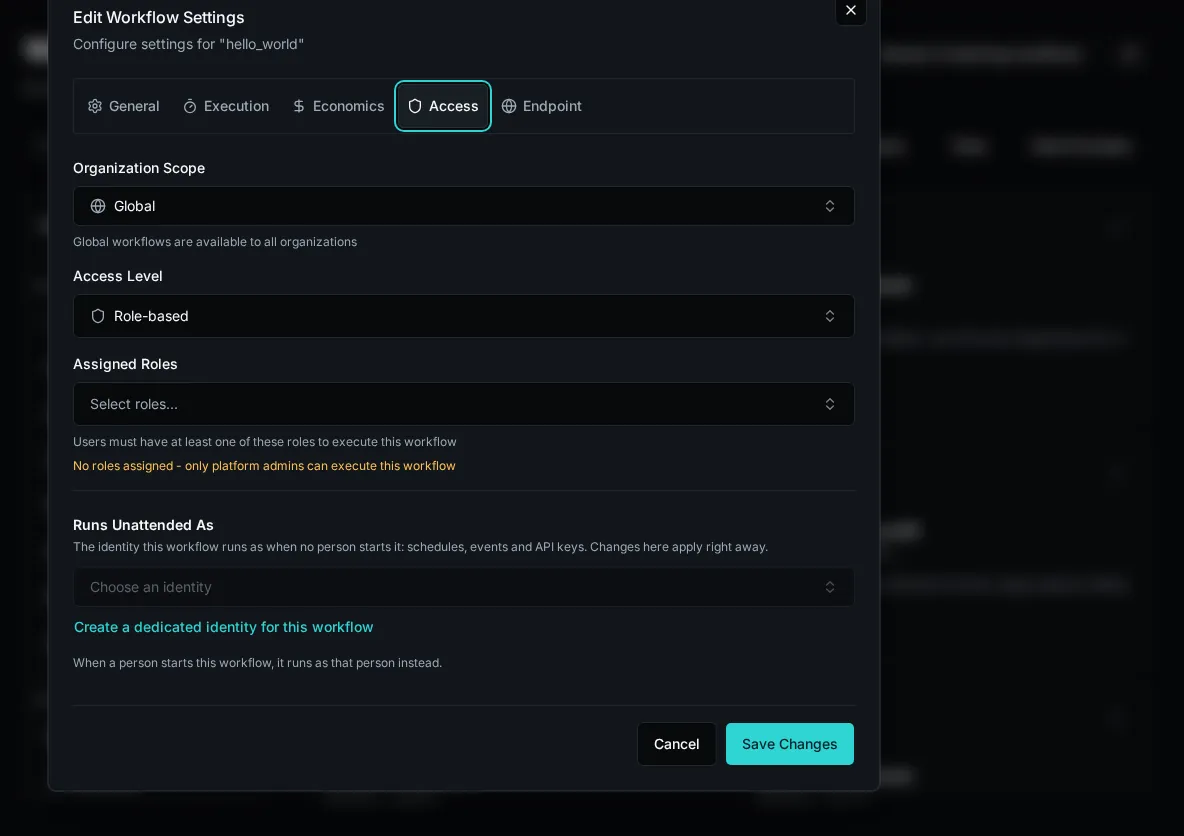
Section titled “Discovering and Launching Resources”An entity’s access level, role bindings, and organization scope determine who can see or launch it. Configure these on the form, workflow, agent, or app rather than relying on a hidden button in a frontend.
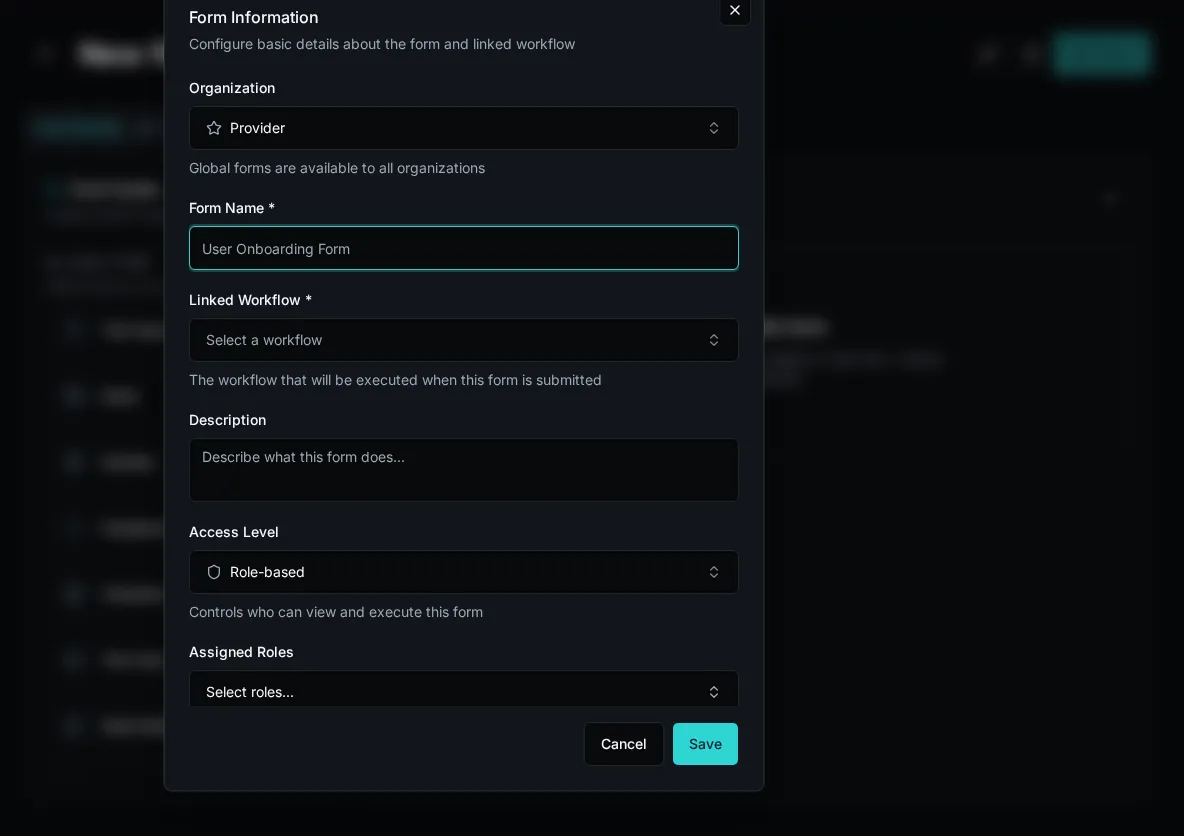
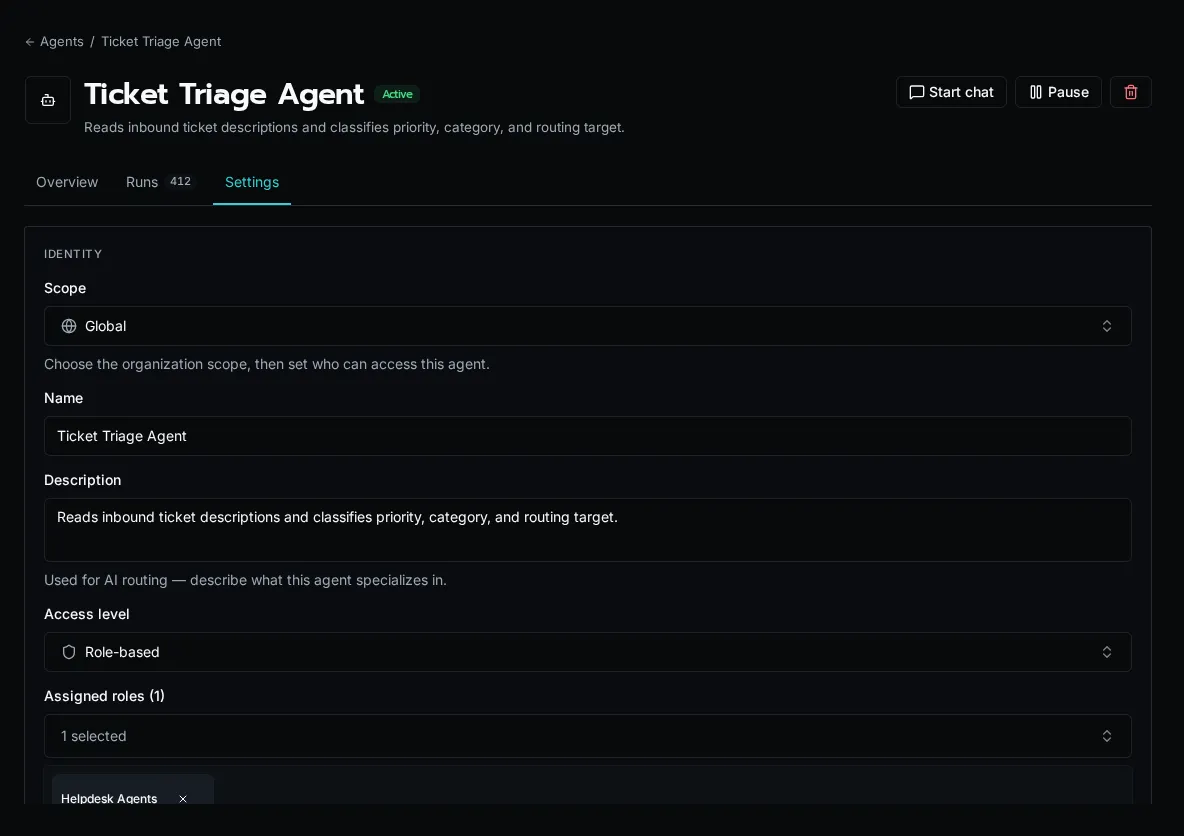
Chat has its own permission. Access to an agent alone does not grant access to the Chat surface. An app or form calling a workflow also passes through the workflow’s execution checks.
Set an agent’s launch visibility and role bindings in its access settings. Tool calls still use the underlying workflows’ execution permissions.
App access controls entry to the app; platform checks still apply to the operations it invokes.
Run Users and Acting Identities
Section titled “Run Users and Acting Identities”A run records its original user separately from its acting identity. Run As changes who performs the action and receives its attribution; the original run user’s current roles and organization reach still decide whether it is allowed. An acting identity cannot enlarge that reach.
Unattended workflows, agents, and services need a selected identity. Manage reusable custom identities under Users → Identities, then select the appropriate identity for the automation. A person’s platform-admin status is not a substitute for the run’s permission checks.
Workflow Access Modes
Section titled “Workflow Access Modes”The workflow Access panel shows its effective mode:
| Mode | Permissions added to the run user’s roles |
|---|---|
| Full Access | Every named permission, including Secrets, within the run user’s organization reach. |
| Declared Permissions | Only the workflow’s configured permissions, within the same reach. |
Full Access remains the platform default. Upgrading to 2.0 does not automatically convert existing workflows to Declared Permissions.
Table and file policies still apply in either mode. Role conditions use the original run user’s own membership. Agents and inline scripts add no workflow permissions. Solution outbound-access settings separately control network access.
The workflow conversion tool can suggest declared permissions from code and recorded usage. Review uncertainties and test normal execution paths before applying a narrower declaration. Its analysis does not run workflows or prove their business behavior.
Solution Permission Requests
Section titled “Solution Permission Requests”A Solution declares each workflow’s requested access mode and permission capabilities. An administrator approves the request for that installation. Changed requests require approval again; revoked or stale approvals add no capabilities. Explicit Declared Permissions requests cannot inherit Full Access from the platform default.
These capabilities add no organizations to the run user’s reach. Existing Full Access installs retain their mode until explicitly restricted.
Checking Access
Section titled “Checking Access”Use Auditing → Access Checks to inspect refusals and selected policy and secret decisions. Successful named-permission checks are omitted, so this log is evidence rather than a complete inventory of a workflow’s needs.
Configure roles, reach, entity access, and workflow permissions together. Frontend visibility and in-body checks can improve the experience, while platform checks remain the authorization boundary.